# 2. Manage your profile

# Important for PURE-editors

<p class="callout warning"><span lang="EN-GB" style="font-size: 12.0pt; mso-bidi-font-size: 11.0pt; line-height: 107%; font-family: 'Arial',sans-serif; mso-bidi-font-family: 'Times New Roman'; mso-bidi-theme-font: minor-bidi; mso-ansi-language: EN-GB;">Please do **not change** any notification settings for emails, notifications, and tasks connected to the workflows (*in the Editorial tasks category*) of research outputs, awards, and persons.</span></p>

# 2.1. E-Mail Settings

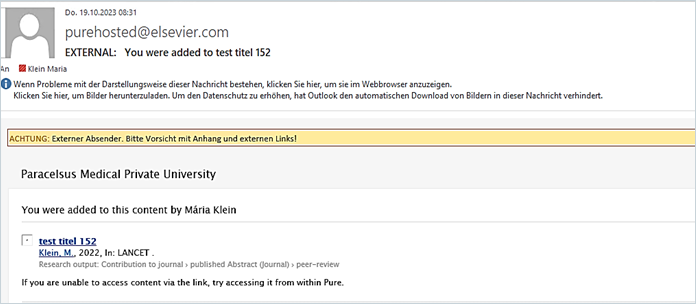
<span lang="EN-GB" style="font-family: 'Arial',sans-serif; mso-ansi-language: EN-GB;">Pure email notifications will be sent to the email address you used to log in. For example, as a researcher, you got an **email** when a new publication is added to your profile. </span>

<span lang="EN-GB" style="font-family: 'Arial',sans-serif; mso-ansi-language: EN-GB;">Here is an example of an email:</span>

<span style="font-family: 'Arial',sans-serif; mso-fareast-language: DE-AT; mso-no-proof: yes;">![](https://wiki.pmu.ac.at/uploads/images/gallery/2025-09/embedded-image-pnjs1etj.png)</span>

<u><span lang="EN-GB" style="font-family: 'Arial',sans-serif; mso-ansi-language: EN-GB;">To manage the email settings:</span></u>

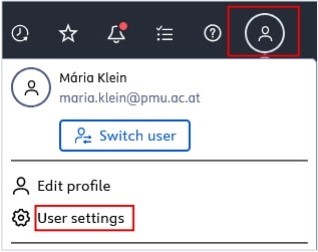
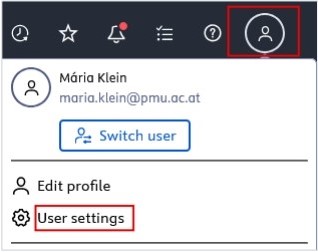
<span lang="EN-GB" style="font-family: 'Arial',sans-serif; mso-fareast-font-family: Arial; mso-ansi-language: EN-GB;"><span style="mso-list: Ignore;">1.<span style="font: 7.0pt 'Times New Roman';"> </span></span></span><span lang="EN-GB" style="font-family: 'Arial',sans-serif; mso-ansi-language: EN-GB;">Click on *Profile menu* in the header and select *User settings*:</span>

<span lang="EN-GB" style="font-family: 'Arial',sans-serif; mso-ansi-language: EN-GB;">[![Bild 1.jpeg](https://wiki.pmu.ac.at/uploads/images/gallery/2025-09/scaled-1680-/KNpbild-1.jpeg)](https://wiki.pmu.ac.at/uploads/images/gallery/2025-09/KNpbild-1.jpeg)</span>

<span style="mso-ignore: vglayout; position: absolute; z-index: 251709440; margin-left: 291px; margin-top: 38px; width: 92px; height: 65px;">  
</span><span style="mso-ignore: vglayout; position: absolute; z-index: 251683840; margin-left: 50px; margin-top: 287px; width: 126px; height: 34px;">  
</span><span style="mso-no-proof: yes;"></span>

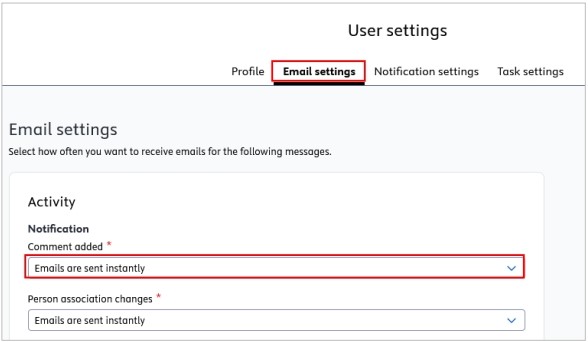
<span lang="EN-GB" style="font-family: 'Arial',sans-serif; mso-fareast-font-family: Arial; mso-ansi-language: EN-GB;"><span style="mso-list: Ignore;">2.<span style="font: 7.0pt 'Times New Roman';"> </span></span></span><span lang="EN-GB" style="font-family: 'Arial',sans-serif; mso-ansi-language: EN-GB;">Navigate to *E-mail Settings* and select the event(s) you wish to modify. </span>

<span lang="EN-GB" style="font-family: 'Arial',sans-serif; mso-fareast-font-family: Arial; mso-ansi-language: EN-GB;"><span style="mso-list: Ignore;">3.<span style="font: 7.0pt 'Times New Roman';"> </span></span></span><span lang="EN-GB" style="font-family: 'Arial',sans-serif; mso-ansi-language: EN-GB;">Select the desired frequency.</span>

[![Bild 2.jpeg](https://wiki.pmu.ac.at/uploads/images/gallery/2025-09/scaled-1680-/bild-2.jpeg)](https://wiki.pmu.ac.at/uploads/images/gallery/2025-09/bild-2.jpeg)

<span lang="EN-GB" style="font-family: 'Arial',sans-serif; mso-fareast-font-family: Arial; mso-ansi-language: EN-GB;"><span style="mso-list: Ignore;">4.<span style="font: 7.0pt 'Times New Roman';"> </span></span></span><span lang="EN-GB" style="font-family: 'Arial',sans-serif; mso-ansi-language: EN-GB;">Click *Save* to apply the changes.</span>

# 2.2. Notification Settings

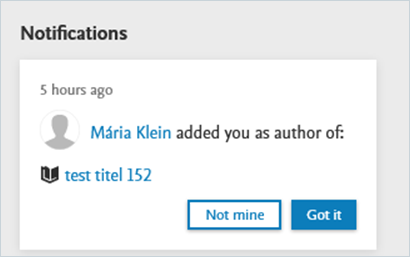
<span lang="EN-GB" style="font-family: 'Arial',sans-serif; mso-ansi-language: EN-GB;">Similar to the email settings, you can manage the **notifications** that Pure automatically sends you when specific events occur.</span>

<span lang="EN-GB" style="font-family: 'Arial',sans-serif; mso-ansi-language: EN-GB;">Here is an example of a notification:</span>

<span style="font-family: 'Arial',sans-serif; mso-fareast-language: DE-AT; mso-no-proof: yes;">![](https://wiki.pmu.ac.at/uploads/images/gallery/2025-09/embedded-image-nkkciaq5.png)</span>

<u><span lang="EN-GB" style="font-family: 'Arial',sans-serif; mso-ansi-language: EN-GB;">To manage the notification settings:</span></u>

<span lang="EN-GB" style="font-family: 'Arial',sans-serif; mso-fareast-font-family: Arial; mso-ansi-language: EN-GB;"><span style="mso-list: Ignore;">1.<span style="font: 7.0pt 'Times New Roman';"> </span></span></span><span lang="EN-GB" style="font-family: 'Arial',sans-serif; mso-ansi-language: EN-GB;">Click on *Profile menu* in the header and select *User settings*:</span>

<span lang="EN-GB" style="font-family: 'Arial',sans-serif; mso-ansi-language: EN-GB;">[![Bild 1.jpeg](https://wiki.pmu.ac.at/uploads/images/gallery/2025-09/scaled-1680-/KNpbild-1.jpeg)](https://wiki.pmu.ac.at/uploads/images/gallery/2025-09/KNpbild-1.jpeg)</span>

<span style="mso-ignore: vglayout; position: absolute; z-index: 251709440; margin-left: 291px; margin-top: 38px; width: 92px; height: 65px;">  
</span><span style="mso-ignore: vglayout; position: absolute; z-index: 251683840; margin-left: 50px; margin-top: 287px; width: 126px; height: 34px;">  
</span>

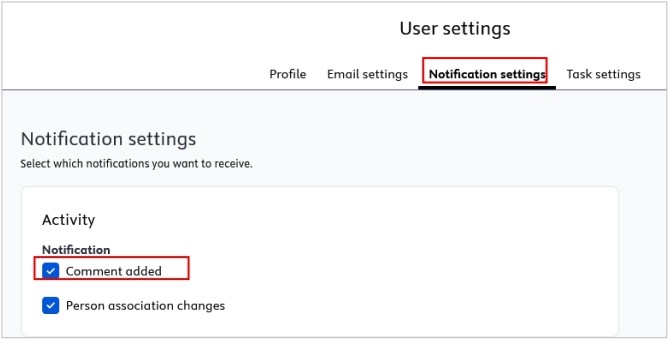
<span lang="EN-GB" style="font-family: 'Arial',sans-serif; mso-fareast-font-family: Arial; mso-ansi-language: EN-GB;"><span style="mso-list: Ignore;">2.<span style="font: 7.0pt 'Times New Roman';"> </span></span></span><span lang="EN-GB" style="font-family: 'Arial',sans-serif; mso-ansi-language: EN-GB;">Navigate to *Notification settings* and select the event(s) you wish to modify. </span>

<span lang="EN-GB" style="font-family: 'Arial',sans-serif; mso-fareast-font-family: Arial; mso-ansi-language: EN-GB;"><span style="mso-list: Ignore;">3.<span style="font: 7.0pt 'Times New Roman';"> </span></span></span><span lang="EN-GB" style="font-family: 'Arial',sans-serif; mso-ansi-language: EN-GB;">Select the desired frequency.</span>

[![Bild 4.jpeg](https://wiki.pmu.ac.at/uploads/images/gallery/2025-09/scaled-1680-/bild-4.jpeg)](https://wiki.pmu.ac.at/uploads/images/gallery/2025-09/bild-4.jpeg)

<span lang="EN-GB" style="font-family: 'Arial',sans-serif; mso-fareast-font-family: Arial; mso-ansi-language: EN-GB;"><span style="mso-list: Ignore;">4.<span style="font: 7.0pt 'Times New Roman';"> </span></span></span><span lang="EN-GB" style="font-family: 'Arial',sans-serif; mso-ansi-language: EN-GB;">Click *Save* to apply the changes.</span>

# 2.3. Task Settings

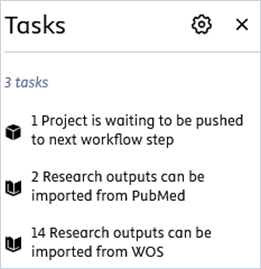
<span lang="EN-GB" style="font-family: 'Arial',sans-serif; mso-ansi-language: EN-GB;">You can manage the notifications that Pure automatically sends you when a **specific task** occurs. </span>

<span lang="EN-GB" style="font-family: 'Arial',sans-serif; mso-ansi-language: EN-GB;">Here is an example of a task notification:</span>

<span style="mso-no-proof: yes;">![Ein Bild, das Text, Screenshot, Schrift, Zahl enthält.

KI-generierte Inhalte können fehlerhaft sein.](https://wiki.pmu.ac.at/uploads/images/gallery/2025-09/embedded-image-trt5mb52.png)</span>

<u><span lang="EN-GB" style="font-family: 'Arial',sans-serif; mso-ansi-language: EN-GB;">To manage the task settings:</span></u>

<span lang="EN-GB" style="font-family: 'Arial',sans-serif; mso-fareast-font-family: Arial; mso-ansi-language: EN-GB;"><span style="mso-list: Ignore;">1.<span style="font: 7.0pt 'Times New Roman';"> </span></span></span><span lang="EN-GB" style="font-family: 'Arial',sans-serif; mso-ansi-language: EN-GB;">Click on *Profile menu* in the header and select *User settings*:</span>

<span lang="EN-GB" style="font-family: 'Arial',sans-serif; mso-ansi-language: EN-GB;">[![Bild 1.jpeg](https://wiki.pmu.ac.at/uploads/images/gallery/2025-09/scaled-1680-/KNpbild-1.jpeg)](https://wiki.pmu.ac.at/uploads/images/gallery/2025-09/KNpbild-1.jpeg)</span>

<span style="mso-ignore: vglayout; position: absolute; z-index: 251709440; margin-left: 291px; margin-top: 38px; width: 92px; height: 65px;">  
</span><span style="mso-ignore: vglayout; position: absolute; z-index: 251683840; margin-left: 50px; margin-top: 287px; width: 126px; height: 34px;">  
</span>

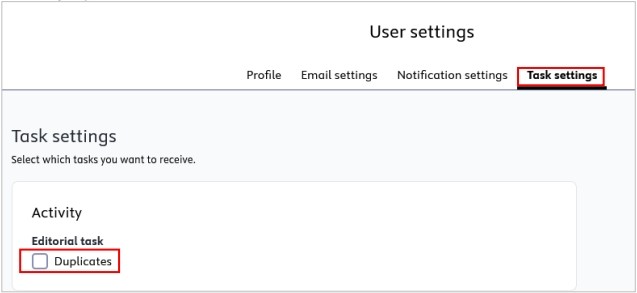
<span lang="EN-GB" style="font-family: 'Arial',sans-serif; mso-fareast-font-family: Arial; mso-ansi-language: EN-GB;"><span style="mso-list: Ignore;">2.<span style="font: 7.0pt 'Times New Roman';"> </span></span></span><span lang="EN-GB" style="font-family: 'Arial',sans-serif; mso-ansi-language: EN-GB;">Navigate to *Task settings* and select the event(s) you wish to modify. </span>

<span lang="EN-GB" style="font-family: 'Arial',sans-serif; mso-fareast-font-family: Arial; mso-ansi-language: EN-GB;"><span style="mso-list: Ignore;">3.<span style="font: 7.0pt 'Times New Roman';"> </span></span></span><span lang="EN-GB" style="font-family: 'Arial',sans-serif; mso-ansi-language: EN-GB;">Select the desired frequency.</span>

[![Bild 5.jpeg](https://wiki.pmu.ac.at/uploads/images/gallery/2025-09/scaled-1680-/bild-5.jpeg)](https://wiki.pmu.ac.at/uploads/images/gallery/2025-09/bild-5.jpeg)

<span lang="EN-GB" style="font-family: 'Arial',sans-serif; mso-fareast-font-family: Arial; mso-ansi-language: EN-GB;"><span style="mso-list: Ignore;">4.<span style="font: 7.0pt 'Times New Roman';"> </span></span></span><span lang="EN-GB" style="font-family: 'Arial',sans-serif; mso-ansi-language: EN-GB;">Click *Save* to apply the changes.</span>

# 2.4. Trusted Users

<span lang="EN-GB" style="font-family: 'Arial',sans-serif; mso-ansi-language: EN-GB;"><span lang="EN-GB" style="font-size: 11.0pt; line-height: 107%; font-family: 'Arial',sans-serif; mso-fareast-font-family: Calibri; mso-fareast-theme-font: minor-latin; mso-ansi-language: EN-GB; mso-fareast-language: EN-US; mso-bidi-language: AR-SA;">Trusted users have **full access** to the profile of the user who added them as a trusted user. </span>A trusted user has the ability to assume control of your user account and perform all the tasks that you can within PURE, except for controlling other accounts with a trusted user status.</span>

<span lang="EN-GB" style="font-family: 'Arial',sans-serif; mso-ansi-language: EN-GB;"> </span>

<u><span lang="EN-GB" style="font-family: 'Arial',sans-serif; mso-ansi-language: EN-GB;">To add a trusted user:</span></u>

1. <span lang="EN-GB" style="font-family: 'Arial',sans-serif; mso-ansi-language: EN-GB;"><span lang="EN-GB" style="font-family: 'Arial',sans-serif; mso-ansi-language: EN-GB;">Click on *Profile menu* in the header and select *User settings*:</span></span>[![Bild 1.jpeg](https://wiki.pmu.ac.at/uploads/images/gallery/2025-09/scaled-1680-/Cmxbild-1.jpeg)](https://wiki.pmu.ac.at/uploads/images/gallery/2025-09/Cmxbild-1.jpeg)
    
    <span lang="EN-GB" style="font-family: 'Arial',sans-serif; mso-ansi-language: EN-GB; mso-no-proof: yes;"></span>
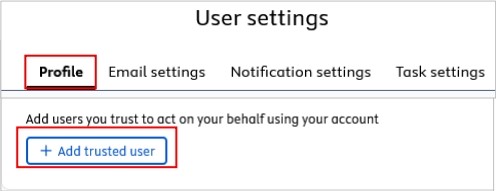
2. <span lang="EN-GB" style="font-family: 'Arial',sans-serif; mso-ansi-language: EN-GB;">Select *Profile* and navigate to *Trusted Users*. Then click on the </span>*<span lang="EN-GB" style="font-family: 'Arial',sans-serif; mso-ansi-language: EN-GB; mso-fareast-language: DE-AT; mso-no-proof: yes;">Add trusted user</span>*<span lang="EN-GB" style="font-family: 'Arial',sans-serif; mso-ansi-language: EN-GB;"><span lang="EN-GB" style="font-family: 'Arial',sans-serif; mso-ansi-language: EN-GB;"> button. Begin searching for the name of the trusted user you wish to add. You can add multiple trusted users.</span></span>[![Bild 7.jpeg](https://wiki.pmu.ac.at/uploads/images/gallery/2025-09/scaled-1680-/Xyvbild-7.jpeg)](https://wiki.pmu.ac.at/uploads/images/gallery/2025-09/Xyvbild-7.jpeg)
3. <span lang="EN-GB" style="font-family: 'Arial',sans-serif; mso-ansi-language: EN-GB;"> Click on *Save*.</span>

<p class="callout info"><span lang="EN-GB" style="font-family: 'Arial',sans-serif; color: black; mso-themecolor: text1; mso-style-textoutline-type: none; mso-style-textoutline-outlinestyle-dpiwidth: .75pt; mso-style-textoutline-outlinestyle-linecap: round; mso-style-textoutline-outlinestyle-join: bevel; mso-style-textoutline-outlinestyle-pctmiterlimit: 0%; mso-style-textoutline-outlinestyle-dash: solid; mso-style-textoutline-outlinestyle-align: center; mso-style-textoutline-outlinestyle-compound: simple; mso-ansi-language: EN-GB;">Even if you add trusted user(s), you can still monitor any changes they make. These alterations are recorded in the *Comments and History* panel.</span></p>

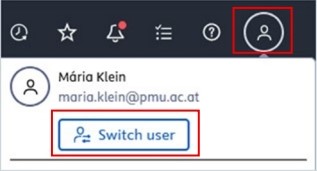
<span lang="EN-GB" style="font-family: 'Arial',sans-serif; mso-ansi-language: EN-GB;">A trusted user can switch between their own profile and the profile of the user who added them as a trusted user by clicking on the *Switch user* button:</span>

[![Bild 9.jpeg](https://wiki.pmu.ac.at/uploads/images/gallery/2025-09/scaled-1680-/bild-9.jpeg)](https://wiki.pmu.ac.at/uploads/images/gallery/2025-09/bild-9.jpeg)

<span lang="EN-GB" style="font-family: 'Arial',sans-serif; mso-ansi-language: EN-GB;">To remove a trusted </span><span lang="EN-GB" style="font-family: 'Arial',sans-serif; mso-ansi-language: EN-GB;">user, click the </span>*<span lang="EN-GB" style="font-family: 'Arial',sans-serif; mso-ansi-language: EN-GB; mso-fareast-language: DE-AT; mso-no-proof: yes;">x</span>*<span lang="EN-GB" style="font-family: 'Arial',sans-serif; mso-ansi-language: EN-GB; mso-fareast-language: DE-AT; mso-no-proof: yes;"> next to the trusted user's name</span><span lang="EN-GB" style="font-family: 'Arial',sans-serif; mso-ansi-language: EN-GB;">.</span>

# 2.5. Language Settings

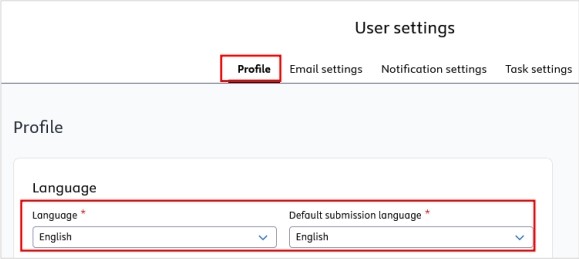
<span lang="EN-GB" style="font-family: 'Arial',sans-serif; mso-ansi-language: EN-GB;">The language controls the language of the menu. The submission language controls the language of the data that will enter into Pure. It is your choice that the menu language and the submission language can be the same or different.</span>

<span lang="EN-GB" style="font-family: 'Arial',sans-serif; mso-ansi-language: EN-GB;"> </span>

<u><span lang="EN-GB" style="font-family: 'Arial',sans-serif; mso-ansi-language: EN-GB;">To change the language:</span></u>

<span lang="EN-GB" style="font-family: 'Arial',sans-serif; mso-ansi-language: EN-GB;">1. Click on *Profile menu* in the header and select *User settings*:</span>

[![Bild 1.jpeg](https://wiki.pmu.ac.at/uploads/images/gallery/2025-09/scaled-1680-/rMRbild-1.jpeg)](https://wiki.pmu.ac.at/uploads/images/gallery/2025-09/rMRbild-1.jpeg)

<span lang="EN-GB" style="font-family: 'Arial',sans-serif; mso-fareast-font-family: Arial; mso-ansi-language: EN-GB;"><span style="mso-list: Ignore;">2.<span style="font: 7.0pt 'Times New Roman';"> </span></span></span><span lang="EN-GB" style="font-family: 'Arial',sans-serif; mso-ansi-language: EN-GB;">In the *Profile* tab select the language in the *Language* and or in the *Default submission language* field. German and English language options are made available by PMU:</span>

<span style="mso-ignore: vglayout; position: absolute; z-index: 251715584; left: 0px; margin-left: 297px; margin-top: 28px; width: 77px; height: 61px;">  
</span><span style="mso-ignore: vglayout; position: absolute; z-index: 251691008; left: 0px; margin-left: 43px; margin-top: 268px; width: 130px; height: 44px;">  
</span><span lang="EN-GB" style="font-family: 'Arial',sans-serif; mso-ansi-language: EN-GB; mso-no-proof: yes;"></span>

[![Bild 11.jpeg](https://wiki.pmu.ac.at/uploads/images/gallery/2025-09/scaled-1680-/bild-11.jpeg)](https://wiki.pmu.ac.at/uploads/images/gallery/2025-09/bild-11.jpeg)

<span lang="EN-GB" style="font-family: 'Arial',sans-serif; mso-fareast-font-family: Arial; mso-ansi-language: EN-GB;"><span style="mso-list: Ignore;">3.<span style="font: 7.0pt 'Times New Roman';"> </span></span></span><span lang="EN-GB" style="font-family: 'Arial',sans-serif; mso-ansi-language: EN-GB;">Click on *Save* to apply the changes.</span>

<p class="callout info"><span lang="EN-GB" style="font-family: 'Arial',sans-serif; color: black; mso-themecolor: text1; mso-style-textoutline-type: none; mso-style-textoutline-outlinestyle-dpiwidth: .75pt; mso-style-textoutline-outlinestyle-linecap: round; mso-style-textoutline-outlinestyle-join: bevel; mso-style-textoutline-outlinestyle-pctmiterlimit: 0%; mso-style-textoutline-outlinestyle-dash: solid; mso-style-textoutline-outlinestyle-align: center; mso-style-textoutline-outlinestyle-compound: simple; mso-ansi-language: EN-GB;">If you frequently enter content in both English and German, you can easily switch between the current submission languages by clicking on the flag </span><span style="font-family: 'Arial',sans-serif; color: black; mso-themecolor: text1; mso-fareast-language: DE-AT; mso-no-proof: yes;">![](https://wiki.pmu.ac.at/uploads/images/gallery/2025-09/embedded-image-js8jpdr8.png)</span><span lang="EN-GB" style="font-family: 'Arial',sans-serif; color: black; mso-themecolor: text1; mso-style-textoutline-type: none; mso-style-textoutline-outlinestyle-dpiwidth: .75pt; mso-style-textoutline-outlinestyle-linecap: round; mso-style-textoutline-outlinestyle-join: bevel; mso-style-textoutline-outlinestyle-pctmiterlimit: 0%; mso-style-textoutline-outlinestyle-dash: solid; mso-style-textoutline-outlinestyle-align: center; mso-style-textoutline-outlinestyle-compound: simple; mso-ansi-language: EN-GB;">corresponding to your preferred language.</span></p>

<span style="mso-ignore: vglayout; position: absolute; z-index: 251694080; margin-left: 283px; margin-top: 180px; width: 78px; height: 35px;">  
</span><span style="mso-ignore: vglayout; position: absolute; z-index: 251659264; margin-left: 33px; margin-top: 361px; width: 646px; height: 66px;">  
</span><span style="mso-no-proof: yes;"></span>

# 2.6. Roles

<span lang="EN-GB" style="font-family: 'Arial',sans-serif; mso-ansi-language: EN-GB;">The researchers at PMU have been assigned a personal user role. The PURE-editors of organisational units of PMU receive additional roles. Please contact the Research Management (<pure@pmu.ac.at>) if you encounter a problem with your role.</span>

<span lang="EN-GB" style="font-family: 'Arial',sans-serif; mso-ansi-language: EN-GB;"> </span>

<u><span lang="EN-GB" style="font-family: 'Arial',sans-serif; mso-ansi-language: EN-GB;">To check on your role(s):</span></u>

1. <span lang="EN-GB" style="font-family: 'Arial',sans-serif; mso-ansi-language: EN-GB;"> Click on *Profile menu* in the header and select *User settings*:</span>

[![Bild 1.jpeg](https://wiki.pmu.ac.at/uploads/images/gallery/2025-09/scaled-1680-/i9Tbild-1.jpeg)](https://wiki.pmu.ac.at/uploads/images/gallery/2025-09/i9Tbild-1.jpeg)

2\. In the *Profile* tab under *Roles*, you can see all your roles:

[![Bild 13.jpeg](https://wiki.pmu.ac.at/uploads/images/gallery/2025-09/scaled-1680-/bild-13.jpeg)](https://wiki.pmu.ac.at/uploads/images/gallery/2025-09/bild-13.jpeg)

# 2.7. Personal profile

<span lang="EN-GB" style="font-family: 'Arial',sans-serif; mso-ansi-language: EN-GB;">Under the Personal tab, you can manage a wide range of information associated with your researcher profile. For example, you can add name variants, profile photo, ORCID, research description, and positions held outside of the PMU. **You are responsible for all the information included in your personal profile.** We recommend providing as much information as possible in your Personal profile.</span>

<span lang="EN-GB" style="font-family: 'Arial',sans-serif; mso-ansi-language: EN-GB;">Here is an *example* how to manage your name variants, for example, names before marriage or multiple middle names. This field also serves to improve accuracy in automated publication search.</span>

<span lang="EN-GB" style="font-family: 'Arial',sans-serif; mso-ansi-language: EN-GB;"> </span>

<u><span lang="EN-GB" style="font-family: 'Arial',sans-serif; mso-ansi-language: EN-GB;">To manage your *name variants*:</span></u>

1. <span lang="EN-GB" style="font-family: 'Arial',sans-serif; mso-ansi-language: EN-GB;"><span lang="EN-GB" style="font-family: 'Arial',sans-serif; mso-ansi-language: EN-GB;"> Click *Personal* in the header and go on *Edit profile* (located under the picture):</span></span>[![Bild 14.jpeg](https://wiki.pmu.ac.at/uploads/images/gallery/2025-09/scaled-1680-/bild-14.jpeg)](https://wiki.pmu.ac.at/uploads/images/gallery/2025-09/bild-14.jpeg)
    
    [![Bild 15.jpeg](https://wiki.pmu.ac.at/uploads/images/gallery/2025-09/scaled-1680-/bild-15.jpeg)](https://wiki.pmu.ac.at/uploads/images/gallery/2025-09/bild-15.jpeg)
2. <span lang="EN-GB" style="font-size: 11.0pt; line-height: 107%; font-family: 'Arial',sans-serif; mso-fareast-font-family: Calibri; mso-fareast-theme-font: minor-latin; mso-ansi-language: EN-GB; mso-fareast-language: EN-US; mso-bidi-language: AR-SA;">Click on the *Metadata* tab in the left navigation.</span>
3. In the *Personal Identification* tab click on the *Add name variant*s button to expand the *Name variant* area: [![Bild 16.jpeg](https://wiki.pmu.ac.at/uploads/images/gallery/2025-09/scaled-1680-/bild-16.jpeg)](https://wiki.pmu.ac.at/uploads/images/gallery/2025-09/bild-16.jpeg)
4. <span lang="EN-GB" style="font-family: 'Arial',sans-serif; mso-fareast-font-family: Arial; mso-ansi-language: EN-GB;"><span style="mso-list: Ignore;"> <span style="font: 7.0pt 'Times New Roman';"> </span></span></span><span lang="EN-GB" style="font-family: 'Arial',sans-serif; mso-ansi-language: EN-GB;">Enter the First Name and the Last Name you want to add, then click on *Create*. </span>
    
    <span lang="EN-GB" style="font-family: 'Arial',sans-serif; mso-ansi-language: EN-GB;">Click on the minus icon to remove the names. Click on *Edit* to update the names.</span>
5. <span lang="EN-GB" style="font-family: 'Arial',sans-serif; mso-ansi-language: EN-GB;">Click on *Save*.</span>

<p class="callout info"><span lang="EN-GB" style="font-family: 'Arial',sans-serif; mso-ansi-language: EN-GB;">Your scientific work in numbers and graphs </span></p>

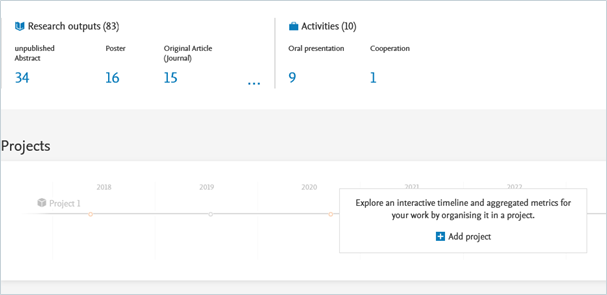
<span lang="EN-GB" style="font-family: 'Arial',sans-serif; mso-ansi-language: EN-GB;">Under your personal profile, your scientific work is visualized through numbers and graphs, including your research outputs, projects, research network, top co-authorships, and top organizational affiliations on research outputs.</span>

[![grafik.png](https://wiki.pmu.ac.at/uploads/images/gallery/2025-09/scaled-1680-/s43grafik.png)](https://wiki.pmu.ac.at/uploads/images/gallery/2025-09/s43grafik.png)