# 2.4. Trusted Users

<span lang="EN-GB" style="font-family: 'Arial',sans-serif; mso-ansi-language: EN-GB;"><span lang="EN-GB" style="font-size: 11.0pt; line-height: 107%; font-family: 'Arial',sans-serif; mso-fareast-font-family: Calibri; mso-fareast-theme-font: minor-latin; mso-ansi-language: EN-GB; mso-fareast-language: EN-US; mso-bidi-language: AR-SA;">Trusted users have **full access** to the profile of the user who added them as a trusted user. </span>A trusted user has the ability to assume control of your user account and perform all the tasks that you can within PURE, except for controlling other accounts with a trusted user status.</span>

<span lang="EN-GB" style="font-family: 'Arial',sans-serif; mso-ansi-language: EN-GB;"> </span>

<u><span lang="EN-GB" style="font-family: 'Arial',sans-serif; mso-ansi-language: EN-GB;">To add a trusted user:</span></u>

1. <span lang="EN-GB" style="font-family: 'Arial',sans-serif; mso-ansi-language: EN-GB;"><span lang="EN-GB" style="font-family: 'Arial',sans-serif; mso-ansi-language: EN-GB;">Click on *Profile menu* in the header and select *User settings*:</span></span>[![Bild 1.jpeg](https://wiki.pmu.ac.at/uploads/images/gallery/2025-09/scaled-1680-/Cmxbild-1.jpeg)](https://wiki.pmu.ac.at/uploads/images/gallery/2025-09/Cmxbild-1.jpeg)
    
    <span lang="EN-GB" style="font-family: 'Arial',sans-serif; mso-ansi-language: EN-GB; mso-no-proof: yes;"></span>
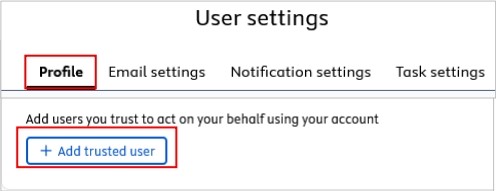
2. <span lang="EN-GB" style="font-family: 'Arial',sans-serif; mso-ansi-language: EN-GB;">Select *Profile* and navigate to *Trusted Users*. Then click on the </span>*<span lang="EN-GB" style="font-family: 'Arial',sans-serif; mso-ansi-language: EN-GB; mso-fareast-language: DE-AT; mso-no-proof: yes;">Add trusted user</span>*<span lang="EN-GB" style="font-family: 'Arial',sans-serif; mso-ansi-language: EN-GB;"><span lang="EN-GB" style="font-family: 'Arial',sans-serif; mso-ansi-language: EN-GB;"> button. Begin searching for the name of the trusted user you wish to add. You can add multiple trusted users.</span></span>[![Bild 7.jpeg](https://wiki.pmu.ac.at/uploads/images/gallery/2025-09/scaled-1680-/Xyvbild-7.jpeg)](https://wiki.pmu.ac.at/uploads/images/gallery/2025-09/Xyvbild-7.jpeg)
3. <span lang="EN-GB" style="font-family: 'Arial',sans-serif; mso-ansi-language: EN-GB;"> Click on *Save*.</span>

<p class="callout info"><span lang="EN-GB" style="font-family: 'Arial',sans-serif; color: black; mso-themecolor: text1; mso-style-textoutline-type: none; mso-style-textoutline-outlinestyle-dpiwidth: .75pt; mso-style-textoutline-outlinestyle-linecap: round; mso-style-textoutline-outlinestyle-join: bevel; mso-style-textoutline-outlinestyle-pctmiterlimit: 0%; mso-style-textoutline-outlinestyle-dash: solid; mso-style-textoutline-outlinestyle-align: center; mso-style-textoutline-outlinestyle-compound: simple; mso-ansi-language: EN-GB;">Even if you add trusted user(s), you can still monitor any changes they make. These alterations are recorded in the *Comments and History* panel.</span></p>

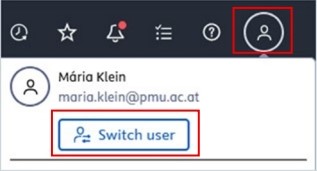
<span lang="EN-GB" style="font-family: 'Arial',sans-serif; mso-ansi-language: EN-GB;">A trusted user can switch between their own profile and the profile of the user who added them as a trusted user by clicking on the *Switch user* button:</span>

[![Bild 9.jpeg](https://wiki.pmu.ac.at/uploads/images/gallery/2025-09/scaled-1680-/bild-9.jpeg)](https://wiki.pmu.ac.at/uploads/images/gallery/2025-09/bild-9.jpeg)

<span lang="EN-GB" style="font-family: 'Arial',sans-serif; mso-ansi-language: EN-GB;">To remove a trusted </span><span lang="EN-GB" style="font-family: 'Arial',sans-serif; mso-ansi-language: EN-GB;">user, click the </span>*<span lang="EN-GB" style="font-family: 'Arial',sans-serif; mso-ansi-language: EN-GB; mso-fareast-language: DE-AT; mso-no-proof: yes;">x</span>*<span lang="EN-GB" style="font-family: 'Arial',sans-serif; mso-ansi-language: EN-GB; mso-fareast-language: DE-AT; mso-no-proof: yes;"> next to the trusted user's name</span><span lang="EN-GB" style="font-family: 'Arial',sans-serif; mso-ansi-language: EN-GB;">.</span>