# 2.7. Personal profile

<span lang="EN-GB" style="font-family: 'Arial',sans-serif; mso-ansi-language: EN-GB;">Under the Personal tab, you can manage a wide range of information associated with your researcher profile. For example, you can add name variants, profile photo, ORCID, research description, and positions held outside of the PMU. **You are responsible for all the information included in your personal profile.** We recommend providing as much information as possible in your Personal profile.</span>

<span lang="EN-GB" style="font-family: 'Arial',sans-serif; mso-ansi-language: EN-GB;">Here is an *example* how to manage your name variants, for example, names before marriage or multiple middle names. This field also serves to improve accuracy in automated publication search.</span>

<span lang="EN-GB" style="font-family: 'Arial',sans-serif; mso-ansi-language: EN-GB;"> </span>

<u><span lang="EN-GB" style="font-family: 'Arial',sans-serif; mso-ansi-language: EN-GB;">To manage your *name variants*:</span></u>

1. <span lang="EN-GB" style="font-family: 'Arial',sans-serif; mso-ansi-language: EN-GB;"><span lang="EN-GB" style="font-family: 'Arial',sans-serif; mso-ansi-language: EN-GB;"> Click *Personal* in the header and go on *Edit profile* (located under the picture):</span></span>[![Bild 14.jpeg](https://wiki.pmu.ac.at/uploads/images/gallery/2025-09/scaled-1680-/bild-14.jpeg)](https://wiki.pmu.ac.at/uploads/images/gallery/2025-09/bild-14.jpeg)
    
    [![Bild 15.jpeg](https://wiki.pmu.ac.at/uploads/images/gallery/2025-09/scaled-1680-/bild-15.jpeg)](https://wiki.pmu.ac.at/uploads/images/gallery/2025-09/bild-15.jpeg)

2. <span lang="EN-GB" style="font-size: 11.0pt; line-height: 107%; font-family: 'Arial',sans-serif; mso-fareast-font-family: Calibri; mso-fareast-theme-font: minor-latin; mso-ansi-language: EN-GB; mso-fareast-language: EN-US; mso-bidi-language: AR-SA;">Click on the *Metadata* tab in the left navigation.</span>
3. In the *Personal Identification* tab click on the *Add name variant*s button to expand the *Name variant* area: [![Bild 16.jpeg](https://wiki.pmu.ac.at/uploads/images/gallery/2025-09/scaled-1680-/bild-16.jpeg)](https://wiki.pmu.ac.at/uploads/images/gallery/2025-09/bild-16.jpeg)
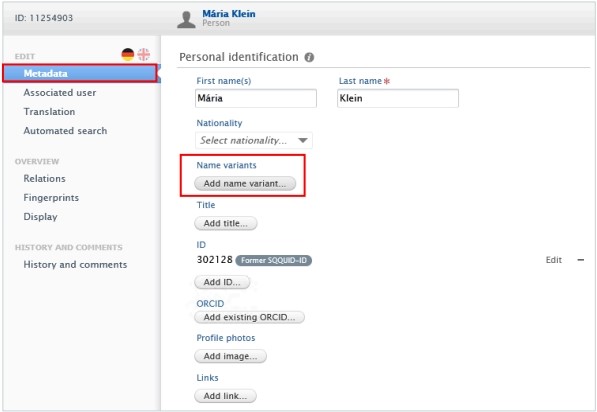
4. <span lang="EN-GB" style="font-family: 'Arial',sans-serif; mso-fareast-font-family: Arial; mso-ansi-language: EN-GB;"><span style="mso-list: Ignore;"> <span style="font: 7.0pt 'Times New Roman';"> </span></span></span><span lang="EN-GB" style="font-family: 'Arial',sans-serif; mso-ansi-language: EN-GB;">Enter the First Name and the Last Name you want to add, then click on *Create*. </span>
    
    <span lang="EN-GB" style="font-family: 'Arial',sans-serif; mso-ansi-language: EN-GB;">Click on the minus icon to remove the names. Click on *Edit* to update the names.</span>
5. <span lang="EN-GB" style="font-family: 'Arial',sans-serif; mso-ansi-language: EN-GB;">Click on *Save*.</span>

<p class="callout info"><span lang="EN-GB" style="font-family: 'Arial',sans-serif; mso-ansi-language: EN-GB;">Your scientific work in numbers and graphs </span></p>

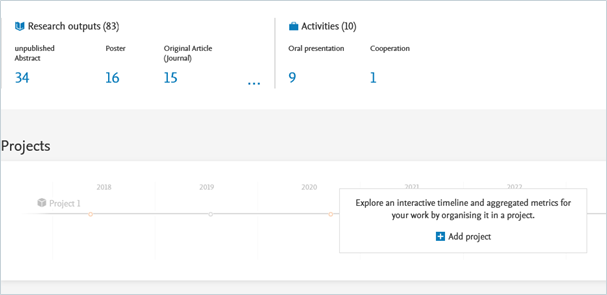
<span lang="EN-GB" style="font-family: 'Arial',sans-serif; mso-ansi-language: EN-GB;">Under your personal profile, your scientific work is visualized through numbers and graphs, including your research outputs, projects, research network, top co-authorships, and top organizational affiliations on research outputs.</span>

[![grafik.png](https://wiki.pmu.ac.at/uploads/images/gallery/2025-09/scaled-1680-/s43grafik.png)](https://wiki.pmu.ac.at/uploads/images/gallery/2025-09/s43grafik.png)