2. Check and Manage Research Outputs
- 2.1. Editable vs. all Research Outputs
- 2.2. Global Search
- 2.3. Search Within Research Outputs
- 2.4. Filter Within Research Outputs
- 2.5. Sort by Within Research Outputs
- 2.6. View Types Within Research Outputs
- 2.7. Export a List of Research Outputs
2.1. Editable vs. all Research Outputs
As an editor, you have the access to the research outputs of your teaching hospital.
The Editable category in research outputs includes only those research outputs where the teaching hospital (of the editor) the managing organizational unit is:
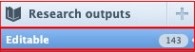
In the Editable category of Research outputs, you fill find validated Research outputs as well. Please don’t make any changes to validated records. If you need modifications (e.g. because of incorrect data), you can write a comment on the record (under the History and comments tab) or contact Research Management at pure@pmu.ac.at. If you make any modifications to a record after the validation process, the Research Management will not take responsibility for the correctness of the data.
You have two options to reach every research output of your teaching hospital:
1. option:
1. Go on Editor in the header and select Research outputs.
2.
Remove the My content filter. 
3. Click on the Add filter icon. 
4. Select Organisations and fill in the name your teaching hospital.
5. Add a name to the new filter (e.g. all publications).
6. Click on the pin icon  to save the filter.
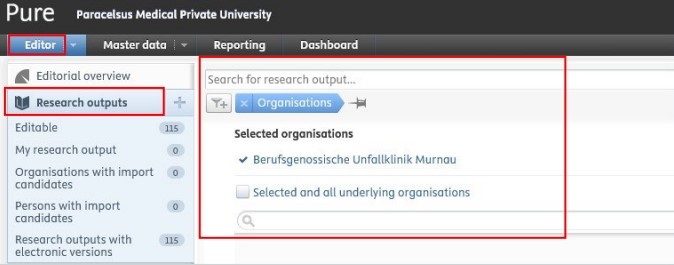
Now you can view, filter and download all research outputs of your teaching hospitals.
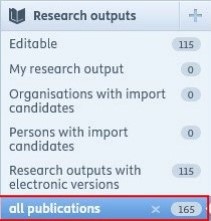
2. option:
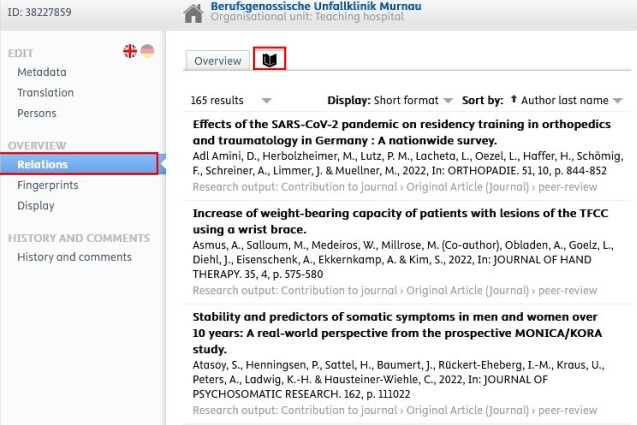
1. Go on Master data in the header and select Organisational units.
2. Select your teaching hospital and click on the name of it.
3. Go on Relations tab.
4. Select Research outputs.
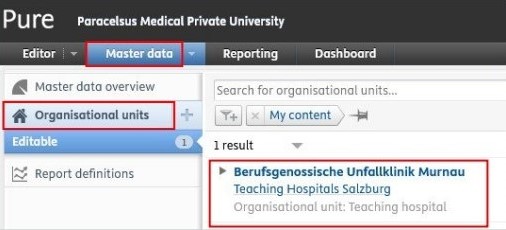
2.2. Global Search
This searches through metadata of all records and content types available in PURE:

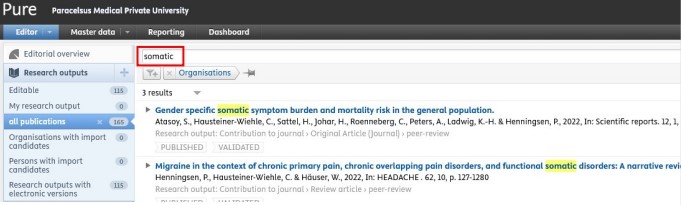
2.3. Search Within Research Outputs
Click on research outputs on the left navigation to open the content list view with search functionality:
2.4. Filter Within Research Outputs
After choosing Research outputs, navigate, for example to the category 'all publications ', click on the Add filter icon and select from the available filter options (e.g. 'Author collaborations'):
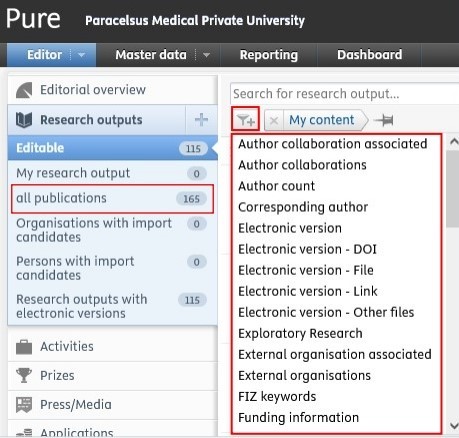
You can add multiple filters if you need to.
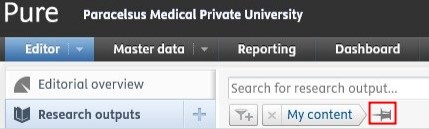
If you wish to use specific filters regularly, you can click on the pin icon 
to save the filter. By doing so, you can save time and easily filter content you need:
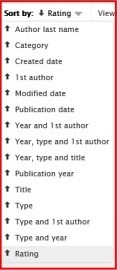
2.5. Sort by Within Research Outputs
After obtaining a list of records within Research outputs, there is the possibility to sort the records by several options (e.g. title, type, etc.):
2.6. View Types Within Research Outputs
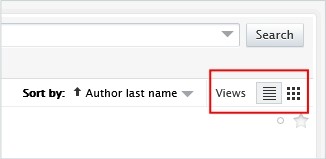
You can choose from the list view or the matrix view to visualise your data:
2.7. Export a List of Research Outputs
On the bottom of the page, you can select your preferred file type for export:
