# 2. Check and Manage Research Outputs

# 2.1. Editable vs. all Research Outputs

<span lang="EN-GB" style="mso-ansi-language: EN-GB;">As an editor, you have the access to the research outputs of your teaching hospital. </span>

<span lang="EN-GB" style="mso-ansi-language: EN-GB; mso-bidi-font-style: italic;">The </span>***<span lang="EN-GB" style="mso-ansi-language: EN-GB;">Editable</span>***<span lang="EN-GB" style="mso-ansi-language: EN-GB; mso-bidi-font-style: italic;"> category in research outputs includes only those research outputs where the teaching hospital (of the editor) the **managing organizational** unit is</span><span lang="EN-GB" style="mso-ansi-language: EN-GB;">:</span>

[![Bild 2.jpeg](https://wiki.pmu.ac.at/uploads/images/gallery/2025-09/scaled-1680-/i9Dbild-2.jpeg)](https://wiki.pmu.ac.at/uploads/images/gallery/2025-09/i9Dbild-2.jpeg)

<p class="callout warning"><span lang="EN-GB" style="mso-ansi-language: EN-GB;">In the Editable category of Research outputs, you fill find validated Research outputs as well. Please **don’t make any changes to validated records**. If you need modifications (e.g. because of incorrect data), you can write a **comment** on the record (under the *History and comments* tab) or **contact Research Management at <pure@pmu.ac.at>**. If you make any modifications to a record after the validation process, the Research Management will not take responsibility for the correctness of the data.</span></p>

<span lang="EN-GB" style="mso-ansi-language: EN-GB;">You have two options to reach **every research output of your teaching hospital**:</span>

<p class="callout success"><u>1. option:</u></p>

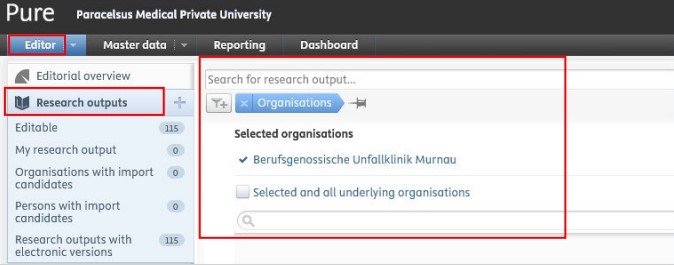
<span lang="EN-GB" style="mso-fareast-font-family: Arial; mso-bidi-font-family: Arial; mso-ansi-language: EN-GB;"><span style="mso-list: Ignore;">1.<span style="font: 7.0pt 'Times New Roman';"> </span></span></span><span lang="EN-GB" style="mso-ansi-language: EN-GB;">Go on Editor in the header and select *Research outputs*.</span>

<span lang="EN-GB" style="mso-fareast-font-family: Arial; mso-bidi-font-family: Arial; mso-ansi-language: EN-GB;"><span style="mso-list: Ignore;">2.<span style="font: 7.0pt 'Times New Roman';"> </span></span></span><span style="mso-ignore: vglayout; position: absolute; z-index: 251732992; left: 0px; margin-left: 311px; margin-top: 35px; width: 28px; height: 26px;">  
</span><span lang="EN-GB" style="mso-ansi-language: EN-GB;">Remove the *My content* filter.</span><span lang="EN-GB" style="font-size: 12.0pt; font-family: 'Times New Roman',serif; mso-fareast-font-family: 'Times New Roman'; mso-ansi-language: EN-GB; mso-fareast-language: DE-AT; mso-no-proof: yes;"> </span><span style="mso-fareast-language: DE-AT; mso-no-proof: yes;">![](https://wiki.pmu.ac.at/uploads/images/gallery/2025-09/embedded-image-t7dm9aie.jpeg)</span>

<span lang="EN-GB" style="mso-fareast-font-family: Arial; mso-bidi-font-family: Arial; mso-ansi-language: EN-GB;"><span style="mso-list: Ignore;">3.<span style="font: 7.0pt 'Times New Roman';"> </span></span></span><span lang="EN-GB" style="mso-ansi-language: EN-GB;">Click on the *Add filter* icon.</span><span lang="EN-GB" style="font-size: 12.0pt; font-family: 'Times New Roman',serif; mso-fareast-font-family: 'Times New Roman'; mso-ansi-language: EN-GB; mso-fareast-language: DE-AT; mso-no-proof: yes;"> </span><span style="mso-fareast-language: DE-AT; mso-no-proof: yes;">![](https://wiki.pmu.ac.at/uploads/images/gallery/2025-09/embedded-image-617umhas.jpeg)</span>

<span lang="EN-GB" style="mso-fareast-font-family: Arial; mso-bidi-font-family: Arial; mso-ansi-language: EN-GB;"><span style="mso-list: Ignore;">4.<span style="font: 7.0pt 'Times New Roman';"> </span></span></span><span lang="EN-GB" style="mso-ansi-language: EN-GB;">Select *Organisations* and fill in the name your teaching hospital.</span>

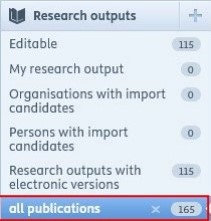
<span lang="EN-GB" style="mso-fareast-font-family: Arial; mso-bidi-font-family: Arial; mso-ansi-language: EN-GB;"><span style="mso-list: Ignore;">5.<span style="font: 7.0pt 'Times New Roman';"> </span></span></span><span lang="EN-GB" style="mso-ansi-language: EN-GB;">Add a name to the new filter (e.g. all publications).  
</span>

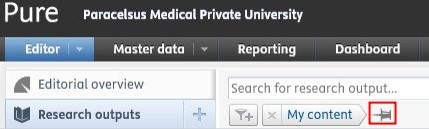
<span lang="EN-GB" style="mso-fareast-font-family: Arial; mso-bidi-font-family: Arial; mso-ansi-language: EN-GB;"><span style="mso-list: Ignore;">6.<span style="font: 7.0pt 'Times New Roman';"> </span></span></span><span lang="EN-GB" style="mso-ansi-language: EN-GB;">Click on the pin icon</span><span lang="EN-GB" style="font-size: 12.0pt; font-family: 'Times New Roman',serif; mso-fareast-font-family: 'Times New Roman'; mso-ansi-language: EN-GB; mso-fareast-language: DE-AT;"> </span>**<span style="mso-fareast-language: DE-AT; mso-no-proof: yes;">![](https://wiki.pmu.ac.at/uploads/images/gallery/2025-09/embedded-image-j33n4joh.jpeg)</span>**<span lang="EN-GB" style="mso-ansi-language: EN-GB;"><span style="mso-spacerun: yes;"> </span>to save the filter.</span>

[![Bild 4.jpeg](https://wiki.pmu.ac.at/uploads/images/gallery/2025-09/scaled-1680-/Dukbild-4.jpeg)](https://wiki.pmu.ac.at/uploads/images/gallery/2025-09/Dukbild-4.jpeg)

<span lang="EN-GB" style="mso-ansi-language: EN-GB;">Now you can view, filter and download all research outputs of your teaching hospitals. </span>

[![Bild 5.jpeg](https://wiki.pmu.ac.at/uploads/images/gallery/2025-09/scaled-1680-/6Whbild-5.jpeg)](https://wiki.pmu.ac.at/uploads/images/gallery/2025-09/6Whbild-5.jpeg)

<p class="callout success"><u><span lang="EN-GB" style="mso-ansi-language: EN-GB;">2. option:</span></u></p>

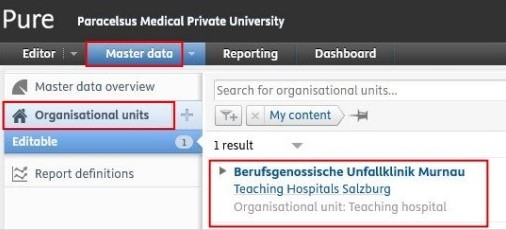
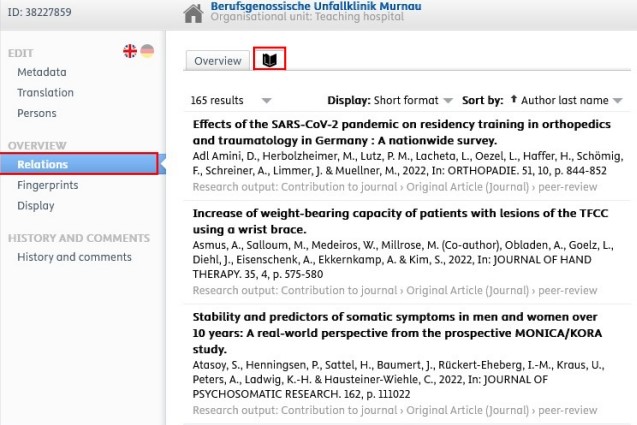
<span lang="EN-GB" style="mso-ansi-language: EN-GB;">1. Go on *Master data* in the header and select *Organisational units*.</span>

<span lang="EN-GB" style="mso-ansi-language: EN-GB;">2. Select your teaching hospital and click on the name of it.</span>

<span lang="EN-GB" style="mso-ansi-language: EN-GB;">3. Go on *Relations* tab.</span>

<span lang="EN-GB" style="mso-ansi-language: EN-GB;">4. Select *Research outputs*.</span>

[![Bild 6.jpeg](https://wiki.pmu.ac.at/uploads/images/gallery/2025-09/scaled-1680-/bild-6.jpeg)](https://wiki.pmu.ac.at/uploads/images/gallery/2025-09/bild-6.jpeg)

[![Bild 7.jpeg](https://wiki.pmu.ac.at/uploads/images/gallery/2025-09/scaled-1680-/HtGbild-7.jpeg)](https://wiki.pmu.ac.at/uploads/images/gallery/2025-09/HtGbild-7.jpeg)
# 2.2. Global Search

<span lang="EN-GB" style="mso-bidi-font-family: Arial; mso-ansi-language: EN-GB;">This searches through **metadata** of all records and content types available in PURE:</span>

[![Bild 8.jpeg](https://wiki.pmu.ac.at/uploads/images/gallery/2025-09/scaled-1680-/bild-8.jpeg)](https://wiki.pmu.ac.at/uploads/images/gallery/2025-09/bild-8.jpeg)

# 2.3. Search Within Research Outputs

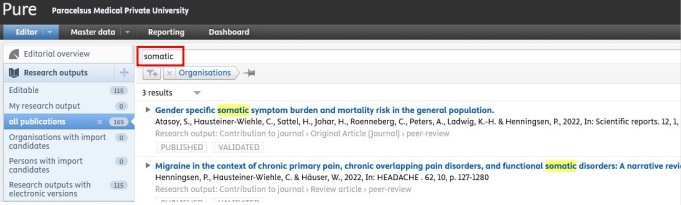
<span lang="EN-GB" style="mso-bidi-font-family: Arial; mso-ansi-language: EN-GB;">Click on research outputs on the left navigation to open the content list view with search functionality:</span>

[![Bild 10.jpeg](https://wiki.pmu.ac.at/uploads/images/gallery/2025-09/scaled-1680-/bild-10.jpeg)](https://wiki.pmu.ac.at/uploads/images/gallery/2025-09/bild-10.jpeg)

# 2.4. Filter Within Research Outputs

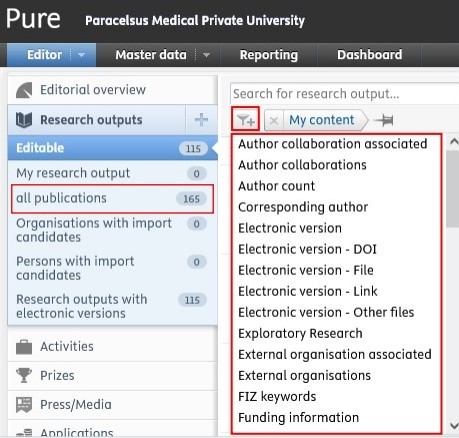
<span lang="EN-GB" style="mso-bidi-font-family: Arial; mso-ansi-language: EN-GB;">After choosing *Research outputs*, navigate, for example to the category 'all publications</span><span lang="EN-GB" style="mso-ansi-language: EN-GB;"> </span><span lang="EN-GB" style="mso-bidi-font-family: Arial; mso-ansi-language: EN-GB;">', click on the *Add filter* icon and select from the available **filter options** (e.g. 'Author collaborations'):</span>

[![Bild 11.jpeg](https://wiki.pmu.ac.at/uploads/images/gallery/2025-09/scaled-1680-/Zvobild-11.jpeg)](https://wiki.pmu.ac.at/uploads/images/gallery/2025-09/Zvobild-11.jpeg)

<span lang="EN-GB" style="mso-bidi-font-family: Arial; mso-ansi-language: EN-GB;">You can add multiple filters if you need to.</span>

<span lang="EN-GB" style="mso-bidi-font-family: Arial; mso-ansi-language: EN-GB;"> </span>

<span lang="EN-GB" style="mso-bidi-font-family: Arial; mso-ansi-language: EN-GB;">If you wish to use specific filters regularly, you can click on the **pin icon** </span>**<span style="mso-bidi-font-family: Arial; mso-no-proof: yes;">![](https://wiki.pmu.ac.at/uploads/images/gallery/2025-09/embedded-image-d001wa1g.png)</span>**

<span lang="EN-GB" style="mso-bidi-font-family: Arial; mso-ansi-language: EN-GB;"><span style="mso-spacerun: yes;"> </span>to save the filter. By doing so, you can save time and easily filter content you need:</span>

[![Bild 13.jpeg](https://wiki.pmu.ac.at/uploads/images/gallery/2025-09/scaled-1680-/ZDCbild-13.jpeg)](https://wiki.pmu.ac.at/uploads/images/gallery/2025-09/ZDCbild-13.jpeg)

# 2.5. Sort by Within Research Outputs

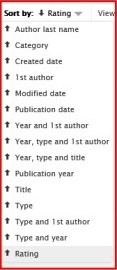
<span lang="EN-GB" style="mso-bidi-font-family: Arial; mso-ansi-language: EN-GB;">After obtaining a list of records within Research outputs, there is the possibility to **sort the records** by several options (e.g. title, type, etc.):</span>

[![Bild 14.jpeg](https://wiki.pmu.ac.at/uploads/images/gallery/2025-09/scaled-1680-/5fSbild-14.jpeg)](https://wiki.pmu.ac.at/uploads/images/gallery/2025-09/5fSbild-14.jpeg)

# 2.6. View Types Within Research Outputs

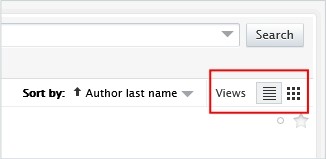
<span lang="EN-GB" style="mso-bidi-font-family: Arial; mso-ansi-language: EN-GB;">You can choose from the list **view** or the matrix view to visualise your data: </span>

[![Bild 15.jpeg](https://wiki.pmu.ac.at/uploads/images/gallery/2025-09/scaled-1680-/teIbild-15.jpeg)](https://wiki.pmu.ac.at/uploads/images/gallery/2025-09/teIbild-15.jpeg)

# 2.7. Export a List of Research Outputs

<span lang="EN-GB" style="mso-bidi-font-family: Arial; mso-ansi-language: EN-GB;">On the bottom of the page, you can select your preferred file type for export:</span>

[![Bild 16.jpeg](https://wiki.pmu.ac.at/uploads/images/gallery/2025-09/scaled-1680-/pmubild-16.jpeg)](https://wiki.pmu.ac.at/uploads/images/gallery/2025-09/pmubild-16.jpeg)