3. Create Research Outputs
- 3.1. Before Creating a Research Output
- 3.2. Ways Importing and Creating Research Outputs
- 3.2.1. Import From Online Source
- 3.2.2. Import from File
- 3.2.3. Create from Template
- 3.2.4. Chapter(s) in a Book
- 3.2.5. Potential Duplicates
3.1. Before Creating a Research Output
First, you always need to check if the content already exists in Pure:
1. Remove the my content filter by on the “x”

2. Now you have access to every publication not just those related to your teaching hospital:
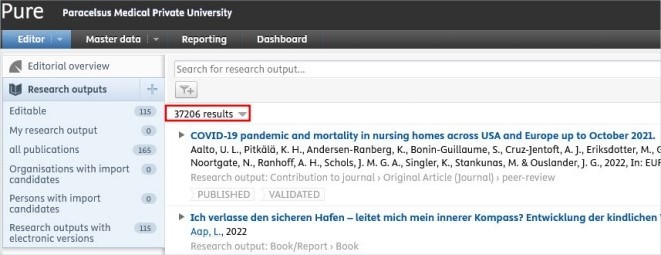
3. Search for the publication by title, PubMed ID, or other identifiers.
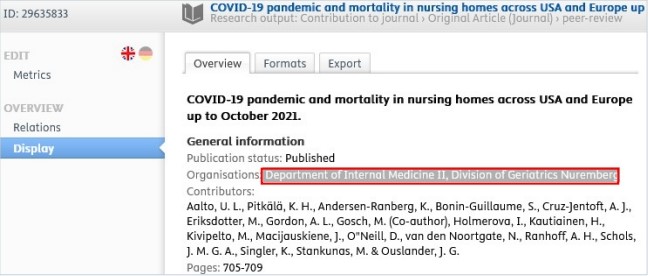
- If the publication you wish to import into PURE appears in the list, click on it and verify whether your teaching hospital is associated with the publication. In this example the publication is only associated with the Department of Internal Medicinie II, Division of Geriatrics Nuremberg. If your teaching hospital is not related to the content, but it should be, please contact Research Management at pure@pmu.ac.at.
- If the publication you wish to import does not appear in the list, you can import the publication without creating duplicates. For the details please refer to chapter Ways Importing and Creating Research Outputs.
3.2. Ways Importing and Creating Research Outputs
After checking your Research output and ensuring that the publication does not exist in Pure, you have three options to import a publication immediately:
Publications published in PubMed or Web of Science.
Import from RIS, BibTex, and CERIF files.
For publications that have not been published in PubMed or Web of Science, as well as for books and book chapters.
Please refrain from uploading original publications in PURE, as our system is designed to store information about publications. Uploading original content may potentially violate Open Access guidelines; therefore, it is not recommended. Alternatively, you can register a DOI or other link to your publication in the editor window.
3.2.1. Import From Online Source
This option is most preferable because this method can save you time, minimize effort, and reduce data-entry errors. It can be used for any kind of research output that is published in PubMed or Web of Science.
To import a research output from online source:
- Click on the Add content button:

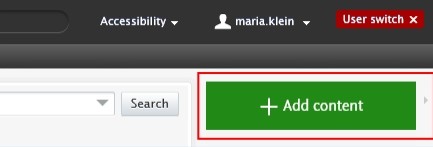
Or click on Editor in the header, select Research outputs, and then click on the  button:

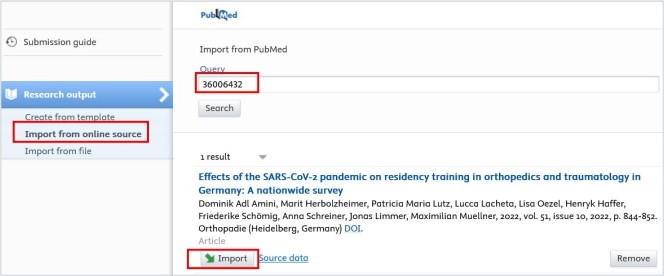
2. Select Import from online source. As an Editor of a teaching hospital, you can import you data from PubMed or Web of Science.
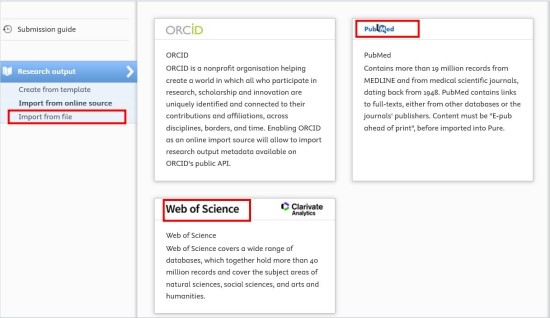
3. Select the online source you want import from.
4. Enter the information you want to search for, such as PubMed ID or your name.
Please ensure you always review the guidelines for the correct format of the information you intend to look for.
5. Click on the Import button located at the bottom of the article you wish to import into Pure.
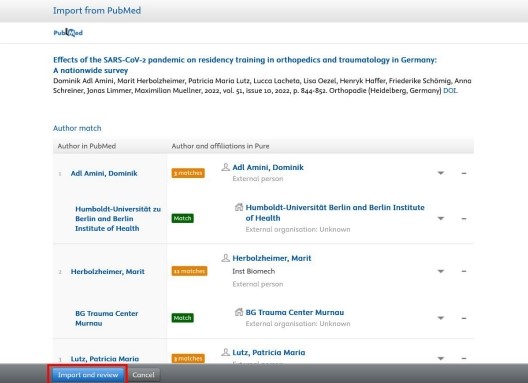
6. Now, you can view the publication details. Do not modify the information displayed here; simply click on Import and review at the bottom of the window:
1 7. In the Research output editor window, you need to manage these fields:
1. Peer-reviewed:
Whether the publication underwent a peer-reviewed process or not (peer-reviewed or not peer-reviewed):

Click on Change template if you realise that the subtype of the Research output is incorrect. For example, if you have selected Original article but need to add a Review article, you can easily switch between template types without losing any of the data you have already filled in:

2. Contributors and affiliations:
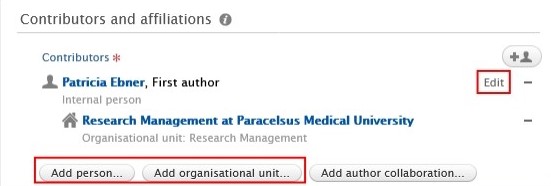
Pure automatically adds contributors with their affiliations to these fields. Here, you only need to add your teaching hospital by clicking on the Add organization unit button:

3. Managing organisational unit:
Select your teaching hospital to this field by clicking on the "house with a plus" button:

8. Set the workflow status For validation and then click on Save.

In the next step, the imported research output undergoes validation by the Research Management of PMU.
3.2.2. Import from File
This option is to be chosen if importing from online sources is not possible. Here, you can add any kind of research outputs from BibTex, RIS and CERIF files.
To import a research output from file:
- Click on the Add content button:
Or click on Editor in the header, select Research outputs, and then click on the button:
2. Select Import from file.
3. Click on the file type you want to import from. BibTex, RIS and CERIF file types are available.
4. You can directly paste your data into to Paste text field if you have already copied it to the clipboard or you can upload a file by clicking on the field Drag file and browse your computer: 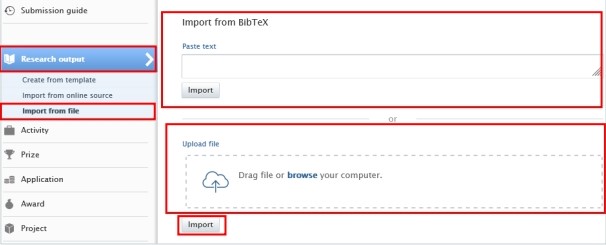
5. Click on the Import button located at the bottom of the article you wish to import into Pure.
6. The next steps are the same as those outlined in the previous chapter.
3.2.3. Create from Template
Please use this method only if the two other methods mentioned above are not possible. For instance, if you wish to add a book(chapter), or import a publication that is published in a scientific journal, but the journal is not listed in Web of Science or PubMed.
To create a new research output from template:
- Click on the Add content button:
Or click on Editor in the header, select Research outputs, and then click on the button:
2. Select Create from template.
3. Scroll down until you locate the precise type of the item you want to add. In most cases it is a Contribution to a journal/Original article.
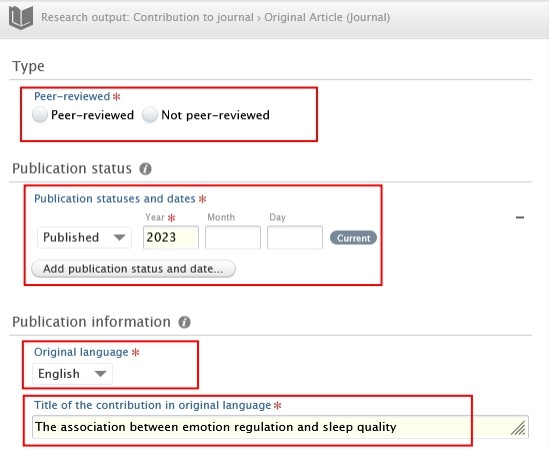
4. In the Research output editor window, you need to manage these fields:
1. Peer-reviewed:
Whether the publication underwent a peer-reviewed process or not (peer-reviewed or not peer-reviewed):
Click on Change template if you realise that the subtype of the Research output is incorrect. For example, if you have selected Original article but need to add a Review article, you can easily switch between template types without losing any of the data you have already filled in:
2. Publication statuses and dates:
Fill in the information of the publication status and dates.
3. Original language:
Choose the original language of the publication.
4. Title of the contribution in original language:
Fill in the title of the contribution in the original language.
5. Contributors and affiliations:
You need to add every contributor with their affiliations to these fields. The order of the authors in Pure should match the order in the publication. You can change the order by clicking on the arrows. You can add additional contributors by clicking on the Add person button, and you can add internal and external organisations by clicking on the Add Organization Unit button. Don’t forget to add your teaching hospital to the organisations units.
6. Managing organisational unit:
Choose the internal organisational unit, which is responsible for managing the publication, no external organisations can be added in this field.
The corresponding author manages the publication. Alternatively, the organisational unit of the last, first, or co-author can be chosen. In case of non-PMU publications select your organisational unit.
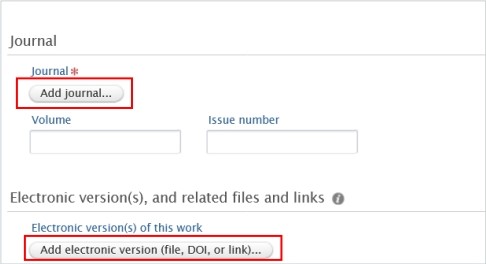
7. Journal:
Click on Add journal then search for the name or the ISSN number of the journal.
If you do not find the journal in the list, click on Create new and fill in the required information.
8. Electronic versions of this work:
You can register a DOI or other links to your publication, but please refrain from uploading the original publication into Pure.
5. Set the workflow status For validation and then click on Save.
In the next step, the imported research output undergoes validation by the Research Management of PMU.
3.2.4. Chapter(s) in a Book
To register a Chapter in a book, you will need to fill in some extra fields additionally to the ‘traditional’ fields.
· To fill in the title of the chapter please use the Title of the contribution in original language field:

· To fill in the title of the book please use the Title of the host publication in original language field, and to add the Publisher, click on the Add publisher button:
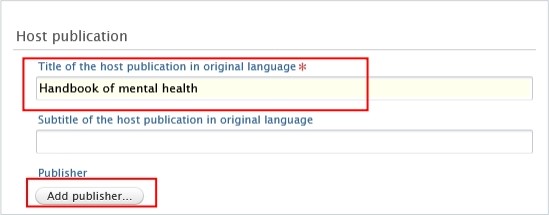
· You can register the Editors of the book (if it has any) by clicking on the Add editor button:

3.2.5. Potential Duplicates
Please, always pay attention to duplicate warnings (here is an example of it):
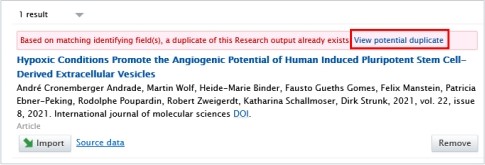
When clicking on the option “View potential duplicate”, you can check the details of the publication that already exists in Pure.
If you realise that the publication you want to import/create already exists in Pure, please refrain from importing/creating it again.
If the types of the publications are different, for example, if you want to import/create a journal publication and a book up as potential duplicate, then it is not a real duplicate, and you can import/create your journal publication without creating a duplicate.