# 3.2.2. Import from File

<span lang="EN-GB" style="mso-bidi-font-family: Arial; color: black; mso-themecolor: text1; mso-ansi-language: EN-GB;">This option is to be chosen **if importing** **from online sources is not possible**. Here, you can add any kind of research outputs from BibTex, RIS and CERIF files.</span>

<u><span lang="EN-GB" style="mso-bidi-font-family: Arial; color: black; mso-themecolor: text1; mso-ansi-language: EN-GB;">To import a research output from file:</span></u>

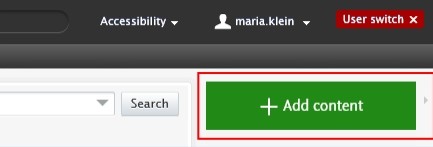
1. <span lang="EN-GB" style="mso-bidi-font-family: Arial; color: black; mso-themecolor: text1; mso-ansi-language: EN-GB;"> Click on the</span><span lang="EN-GB" style="mso-bidi-font-family: Arial; color: black; mso-themecolor: text1; mso-ansi-language: EN-GB;"> Add </span><span lang="EN-GB" style="mso-bidi-font-family: Arial; color: black; mso-themecolor: text1; mso-ansi-language: EN-GB;">content button:</span>[![Bild 20.jpeg](https://wiki.pmu.ac.at/uploads/images/gallery/2025-09/scaled-1680-/bild-20.jpeg)](https://wiki.pmu.ac.at/uploads/images/gallery/2025-09/bild-20.jpeg)

<span lang="EN-GB" style="mso-bidi-font-family: Arial; mso-ansi-language: EN-GB;">Or click on *Editor* in the header, select *Research outputs*, and then click on the </span><span style="mso-bidi-font-family: Arial; mso-fareast-language: DE-AT; mso-no-proof: yes;">![](https://wiki.pmu.ac.at/uploads/images/gallery/2025-09/embedded-image-jutgbecu.png)</span><span lang="EN-GB" style="mso-bidi-font-family: Arial; mso-ansi-language: EN-GB;">button:</span>

[![Bild 21.jpeg](https://wiki.pmu.ac.at/uploads/images/gallery/2025-09/scaled-1680-/bild-21.jpeg)](https://wiki.pmu.ac.at/uploads/images/gallery/2025-09/bild-21.jpeg)

<span lang="EN-GB" style="mso-bidi-font-family: Arial; color: black; mso-themecolor: text1; mso-ansi-language: EN-GB;"> 2. Select *Import from file*.</span>

<span lang="EN-GB" style="mso-bidi-font-family: Arial; color: black; mso-themecolor: text1; mso-ansi-language: EN-GB;"> 3. Click on the file type you want to import from. BibTex, RIS and CERIF file types are available.</span>

<span lang="EN-GB" style="mso-bidi-font-family: Arial; color: black; mso-themecolor: text1; mso-ansi-language: EN-GB;"> 4. You can directly paste your data into to *Paste text* field if you have already copied it to the clipboard or you can upload a file by clicking on the field *Drag file and browse your computer: [![Bild 33.jpeg](https://wiki.pmu.ac.at/uploads/images/gallery/2025-09/scaled-1680-/bild-33.jpeg)](https://wiki.pmu.ac.at/uploads/images/gallery/2025-09/bild-33.jpeg)* </span>
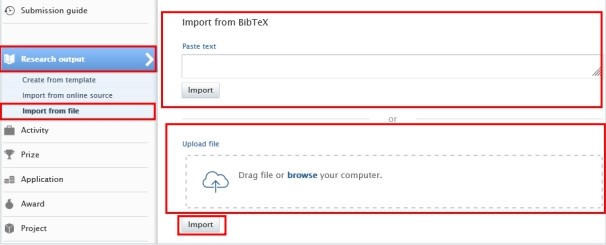
<span lang="EN-GB" style="mso-bidi-font-family: Arial; color: black; mso-themecolor: text1; mso-ansi-language: EN-GB;"> 5. Click on the *Import* button located at the bottom of the article you wish to import into Pure.</span>

<span lang="EN-GB" style="mso-bidi-font-family: Arial; color: black; mso-themecolor: text1; mso-ansi-language: EN-GB;"> 6. The next steps are the same as those outlined in the [previous chapter](https://wiki.pmu.ac.at/books/manual-for-pure-editors-at-the-teaching-hospitals-of-pmu/page/321-import-from-online-source).</span>