3. Create the Content Related to Your Organizational Unit(s)
3.1. Basic Data Types
You can create following basic content types related to your organisation:
· Research outputs
· Activities
· Events
· Prizes
· CVs
· Datasets
· Applications, Awards, Projects
For the exact steps of creating this content types, see the Create Your Content sections in PURE Handbook for Researcher.
3.1.1. Addition to Applications, Awards, and Projects
Only Editors have the authority to carry out certain workflow steps for Applications, such as “Submit: funder” and “Reply received from funder”.
Popup blockers can block the new editor windows; therefore, it is recommended to (temporarily) disable your pop-up blocker.
If you (or a researcher from your organisational unit) has submitted the application to the funder, you need to
1. Select “Submitted” in the workflow at the bottom:

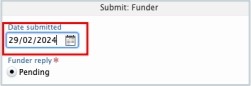
2. Fill in the field “Date submitted”:
If you (or a researcher from your organisational unit) has received a reply from a funder, you also need to:
1. Select “Reply..” in the workflow at the bottom:

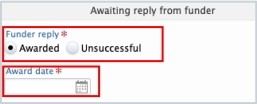
2. Select the type of the reply, and if relevant, fil in the “Award date” field:
In case of a positive answer from the funder (awarded application), please:
1. Contact RM at pure@pmu.ac.at.
2. An award need to be created. The easiest way to do it is to open the application and use this shortcut. For the details of projects see section Awards - Details

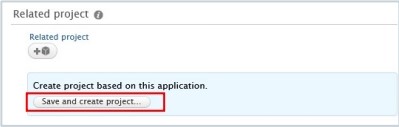
3. Create a project based on the awarded application by opening the Application and clicking on the “Save and create project” button. For the details of projects see section Projects - Details).
4. Click on Save.
In summary, in case of a funded project, you need to create three data types: an application, an award, and a project. These data types need to be linked to each other:


In case of rejection from the funder, the process ends, and you don’t need to create either an award or a project.
3.2. Persons
When a new employee starts to work at your organisation, they need to be registered in PURE.
To create a new Person:
1. Click on Master data in the header:

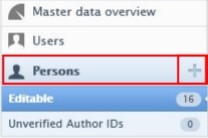
2. Select Persons, and then click on the  button:
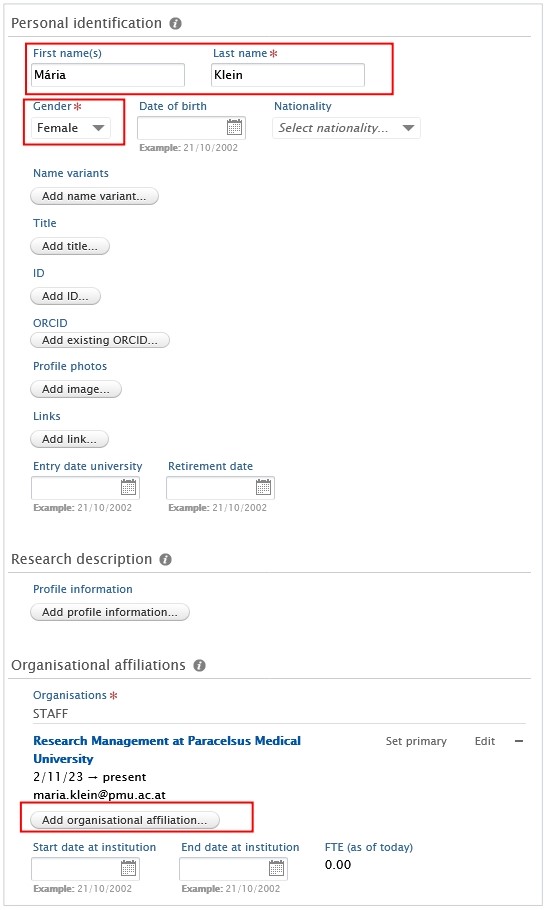
3. In the Person editor window, you need to enter the relevant information about the Person:
1. First name(s) and Last Name:
Fill in the first name(s) and the last name.
2. Gender:
Select the gender from the list.
3. Organisations:
Click on the Add organisational affiliations to register to internal organisational affiliation(s) of the person. Fill in the start date at the institution and register the e-mail address of the new employee.
4. Click on Save.
In the next step, please notify RM by writing a short comment on the record or via e-mail pure@pmu.ac.at with a request to create a user for the person.
Here is an example of writing a comment:
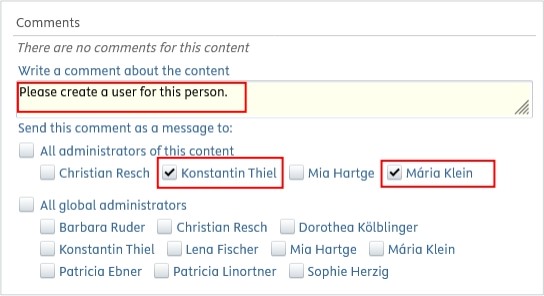
Please make sure to check the boxes next to the names of the admins, and don't forget to click Save at the bottom of the window.
Once the user account has been created, a new employee with a @pmu.ac.at email address registered in their personal profile can log in to PURE via https://my.pmu.ac.at/ by clicking on the PURE icon.
Employees with @salk.at, @klinikum-nuernberg.de e-mail addresses receive their username and password via email and can log in via the following link: https://PURE.pmu.ac.at/admin/login.xhtml.
After that, the person can edit their profile—for example, by adding education/qualification details, positions outside the institution, and more.
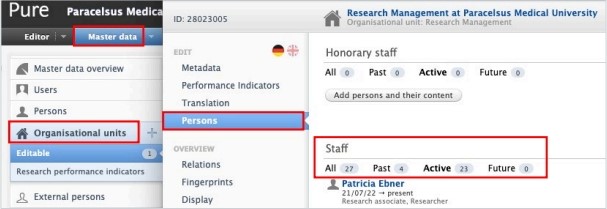
Active vs not active persons:
To directly check the active versus not active persons of your organisational unit, please refer to “Persons” tab:
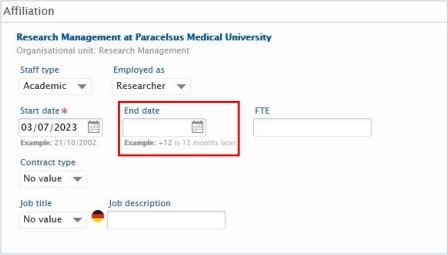
To update data (such as the end date at the organisational unit) to a Person’s profile:
1. Search for the Person.
2. Modify their data in the Editor window. For example, fill in the End date at the organisation unit:
To change the e-mail address of a Person required for PURE login or to add another internal organisation unit affiliation to the Person's profile, please contact RM at pure@pmu.ac.at.