Manual for Pure Editors
This handbook is intended for the Pure Editors of the organisational units of PMU, SALK, and Klinikum Nuremberg. It provides specific information and step-by-step instructions tailored to the needs of Editors responsible for maintaining and verifying research information within their units.
The Pure Handbook for Researchers covers essential Pure knowledge, including how to search in Pure, import research outputs, and enter information about applications, among other core functionalities. Feel free to use the Pure Handbook for Researchers as a complementary resource for general Pure guidance, while this handbook focuses on Editor-specific tasks and responsibilities.
- 1. The Editor-Role
- 2. Check on the Content Related to Your Organisational Unit(s)
- 3. Create the Content Related to Your Organizational Unit(s)
- 4. Workflows
- 5. Habilitation-list (German Habilauszug) for researchers of your organisations unit
1. The Editor-Role
1.1. Check the Editor-Roles
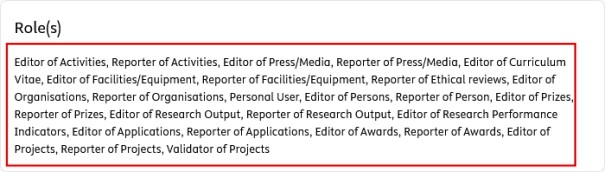
Editors are provided with special roles. Check if all these roles are related to your PURE profile. If any role is missing, please contact the Research Management (RM) at pure@pmu.ac.at.
You can check your roles by clicking on your username and then selecting User settings option:
1.2. Important for PURE-Editors
As an editor you have the authority the view, create, edit, and delete records for your organisational unit. As an editor you are also responsible for the completeness of the data (e.g., research outputs, applications, etc.) for your organisational unit.
To keep our workflow steps as simple as possible and maintain data quality, RM is responsible for validating and approving research outputs, and awards.
When creating a new research output, or award for your organisational unit in PURE, always set the workflow status to Entry in Progress or For validation or For approval, never select Validated or Approved. Once a record has undergone the validation process, don’t make any changes to it. If you need modifications (e.g. because of incorrect data), you can write a comment on the record (under the History and comments tab). If you make any modifications to a record after the validation process, the RM will not take responsibility for the correctness of the data.
2. Check on the Content Related to Your Organisational Unit(s)
2.1. Check on the Content Related to Your Organisational Unit(s)
As an Editor, you have the access to the data of your organisational unit(s).
The Editable category in content types, such as the content type research outputs, includes only those research outputs where the organisations unit (of the rditor) the managing organizational unit is:
You have two options to reach every research output of your organisational unit:
1. option:
1. Go on Editor in the header and select Research outputs.
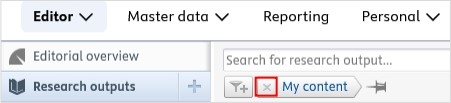
2. Remove the My content filter:
3. Click on the Add filter  icon.
icon.
4. Select Organisations and fill in the name your organisational unit(s).
5. Click on the pin icon 
6. Add a name to the new filter.
7. Save the filter.
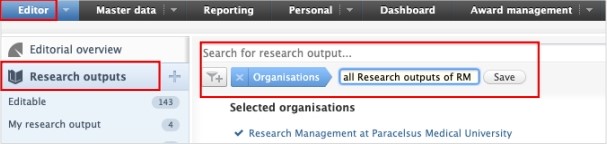
Now you can view, filter and download (at the bottom of the window) all research outputs of your organisational unit(s).
2. option:
1. Go on Master Data in the header and select Organisational units.
2. Select your organisational unit and click on the name of it.
3. Go on Relations tab.
4. Select Research outputs.
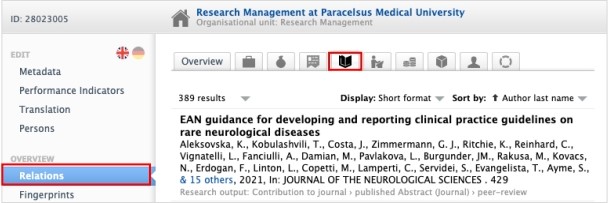
Now you can view and filter all research outputs of your organisational unit. Please note, that downloading the data from this window is not possible.
You can use these three abovementioned methods for other content types, such as activities, prizes.
If you are a Researcher as well, you can check on your own records by selecting the My research output option:
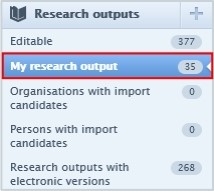
Refer to the chapter Check Your Content in the PURE Handbook for Researcher for options on searching, filtering, viewing, and exporting the various content types.
3. Create the Content Related to Your Organizational Unit(s)
3.1. Basic Data Types
You can create following basic content types related to your organisation:
· Research outputs
· Activities
· Events
· Prizes
· CVs
· Datasets
· Applications, Awards, Projects
For the exact steps of creating this content types, see the Create Your Content sections in PURE Handbook for Researcher.
3.1.1. Addition to Applications, Awards, and Projects
Only Editors have the authority to carry out certain workflow steps for Applications, such as “Submit: funder” and “Reply received from funder”.
Popup blockers can block the new editor windows; therefore, it is recommended to (temporarily) disable your pop-up blocker.
If you (or a researcher from your organisational unit) has submitted the application to the funder, you need to
1. Select “Submitted” in the workflow at the bottom:

2. Fill in the field “Date submitted”:
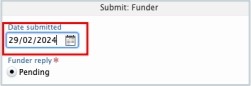
If you (or a researcher from your organisational unit) has received a reply from a funder, you also need to:
1. Select “Reply..” in the workflow at the bottom:

2. Select the type of the reply, and if relevant, fil in the “Award date” field:
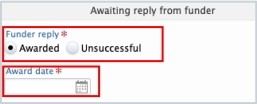
In case of a positive answer from the funder (awarded application), please:
1. Contact RM at pure@pmu.ac.at.
2. An award need to be created. The easiest way to do it is to open the application and use this shortcut. For the details of projects see section Awards - Details

3. Create a project based on the awarded application by opening the Application and clicking on the “Save and create project” button. For the details of projects see section Projects - Details).
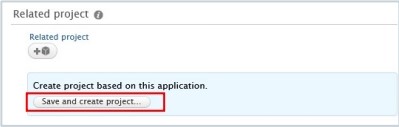
4. Click on Save.
In summary, in case of a funded project, you need to create three data types: an application, an award, and a project. These data types need to be linked to each other:


In case of rejection from the funder, the process ends, and you don’t need to create either an award or a project.
3.2. Persons
When a new employee starts to work at your organisation, they need to be registered in PURE.
To create a new Person:
1. Click on Master data in the header:

2. Select Persons, and then click on the  button:
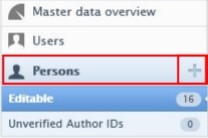
3. In the Person editor window, you need to enter the relevant information about the Person:
1. First name(s) and Last Name:
Fill in the first name(s) and the last name.
2. Gender:
Select the gender from the list.
3. Organisations:
Click on the Add organisational affiliations to register to internal organisational affiliation(s) of the person. Fill in the start date at the institution and register the e-mail address of the new employee.
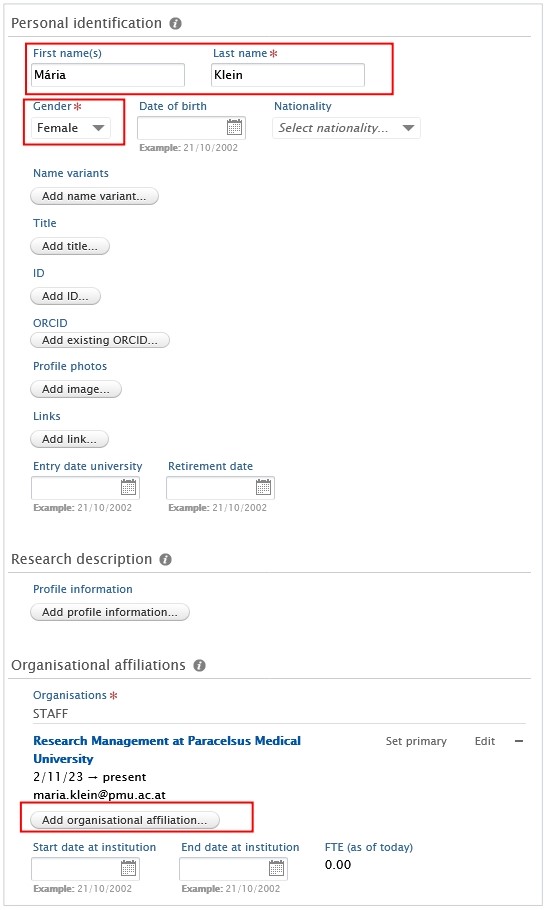
4. Click on Save.
In the next step, please notify RM by writing a short comment on the record or via e-mail pure@pmu.ac.at with a request to create a user for the person.
Here is an example of writing a comment:
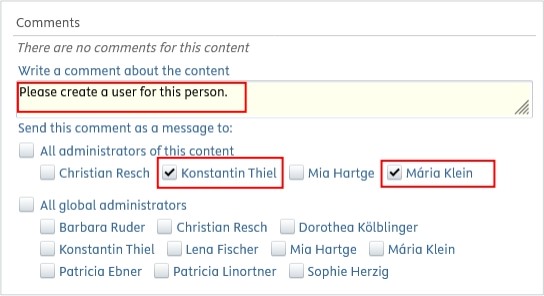
Please make sure to check the boxes next to the names of the admins, and don't forget to click Save at the bottom of the window.
Once the user account has been created, a new employee with a @pmu.ac.at email address registered in their personal profile can log in to PURE via https://my.pmu.ac.at/ by clicking on the PURE icon.
Employees with @salk.at, @klinikum-nuernberg.de e-mail addresses receive their username and password via email and can log in via the following link: https://PURE.pmu.ac.at/admin/login.xhtml.
After that, the person can edit their profile—for example, by adding education/qualification details, positions outside the institution, and more.
Active vs not active persons:
To directly check the active versus not active persons of your organisational unit, please refer to “Persons” tab:
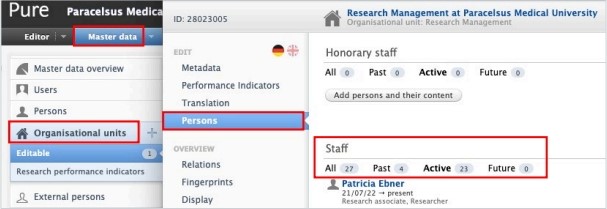
To update data (such as the end date at the organisational unit) to a Person’s profile:
1. Search for the Person.
2. Modify their data in the Editor window. For example, fill in the End date at the organisation unit:
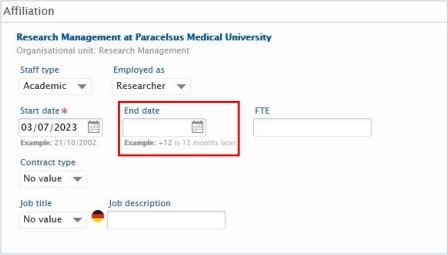
To change the e-mail address of a Person required for PURE login or to add another internal organisation unit affiliation to the Person's profile, please contact RM at pure@pmu.ac.at.
4. Workflows
4.1. Workflows of Research Outputs
PURE editors have the same authority in the workflow of research outputs processes as researchers.
Please never set the workflow status of research outputs to “Validated” as a PURE Editor. At PMU, RM is responsible for validating research outputs. For details, refer to R-30 – Evaluation of Scientific Publications.
4.2. Workflows of Projects – New Role: Validator for Projects
NEW: The role ‘Validator for projects’ has been activated in the profiles of PURE editors.
RM does not validate projects; therefore, it is important that you keep an eye on the projects associated with your organisational unit(s) (you can find them in the category Editable under projects).
This role allows you to set the workflow status of projects to ‘Validated’. Projects labelled as ‘Public’ ① (please note: visibility must be actively set to ‘Public’) AND validated ② will appear immediately in the PURE portal and on the PMU website the following day.
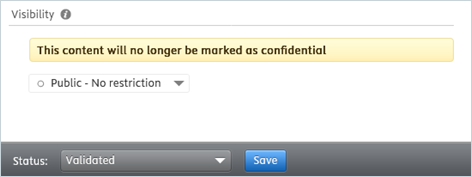
The visibility and workflow status can be found at the bottom of the project dialogue window in PURE:
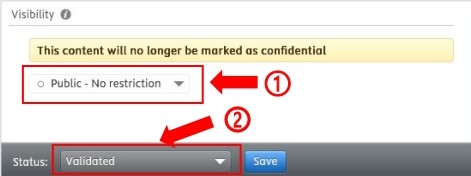
This role also authorises you to update or correct projects that have already been validated (e.g. adjust the duration, add participants, etc.).
After opening the record, click on the pencil icon to update or correct the project data:
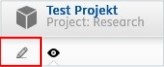
Budget information is generally never displayed in the PURE Portal or on the PMU website, only information on the project participants, the duration, the related internal and external organizational unit(s), labels (so-called fingerprints) generated based on the underlying awards/grants, and a link to the project website.
You can only set projects to ‘Validated’ or subsequently edit already validated projects for which your organisational unit is noted as the managing organisational unit.
Short Checklist, which you must check and correct if necessary before setting the project to ‘Validated’:
ü Project type
ü Title
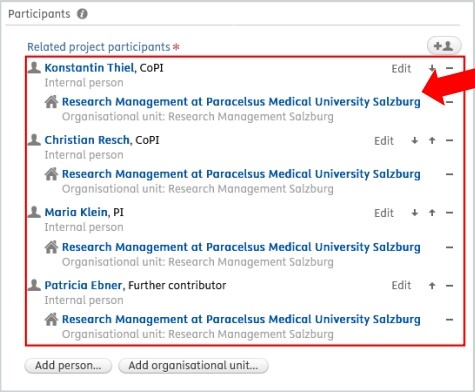
ü Participants
Desired order of related project participants:
- PI
- Co-PI
- Other contributors
→ For several people in the same role: sort alphabetically
ü Managing organisational unit: Order: PI > Co-PI > other contributors
If you wish to correct the managing organisational unit but are unable to select the correct one, please write a comment on the record or contact RM at pure@pmu.ac.at.
ü Collaborative partners
- Select ‘Yes’ if the project is a cooperation between an organisational unit (OU) of the PMU/SALK/Nuremberg Hospital and one or more external organisations.
- Select ‘No’ if only internal OUs of the PMU/SALK/Nuremberg Hospital are involved (no external organisations).
ü Life cycle (start and end date)
ü Visibility: Visibility is set to ‘Confidential’ by default. Set this to ‘Public’ if the project is to be displayed in the PURE portal and on the PMU website.
If available:
ü Delete budget information if it is specified in the fields of the ‘Identification’ category.
The budget information in the associated ‘Application/Award’ record must remain! (Those categories will not be displayed in the portal).
Note: This does not affect the linked funding applications or awards - these remain unaffected.
ü Remove uploaded documents.
Optional data: In addition to the abovementioned information, please feel free to fill in the optional fields as well, such as the project description, keywords, or links to related research outputs.
Examples for correct and incorrect project records
CORRECT example 1:
ü title is filled in
ü short title* is filled in
ü description* is filled in
ü none of the fields under “identifications” contain budget information
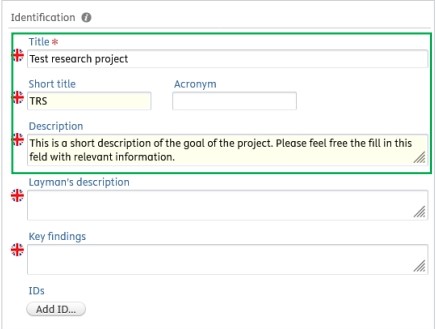
*: optional field
INCORRECT example 1:
! description contains budget information → please remove immediately:
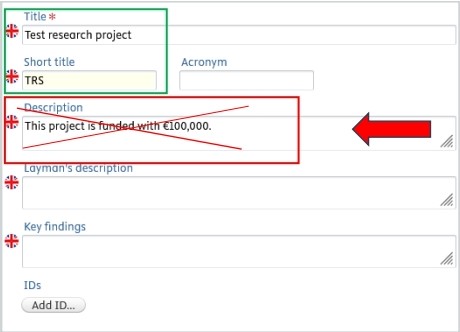
CORRECT example 2:
ü the order of the participants follows the desired order, and persons with the same role are sorted alphabetically:
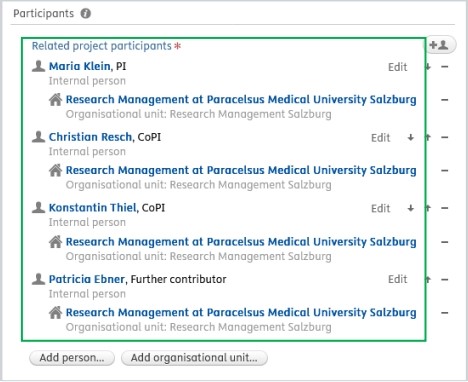
INCORRECT example 2:
! the roles of the participants do not follow the desired order, and individuals with the same role are not sorted alphabetically → please correct the order by clicking on the arrows:
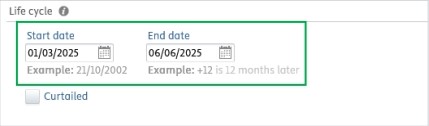
CORRECT example 3:
ü both the start and end date fields are field in:
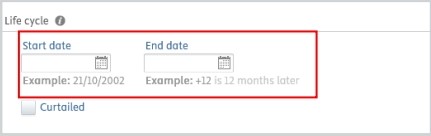
INCORRECT example 3:
! none of the lifecycle fields are filled in – please make sure to enter at least the start date. If the end date is not yet known, please provide an estimated end date:
You can update the period at any time by opening the record and clicking the pencil icon.
CORRECT example 4:
ü a link* has been added, but no document has been uploaded:
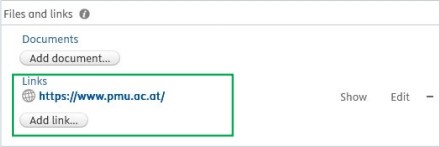
*: optional field
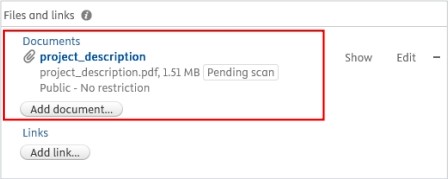
INCORRECT example 4:
! a project document (PDF, Word, etc.) has been uploaded → please remove it immediately by clicking on the minus:
CORRECT example 5:
ü there is an associated application and award linked to the record:
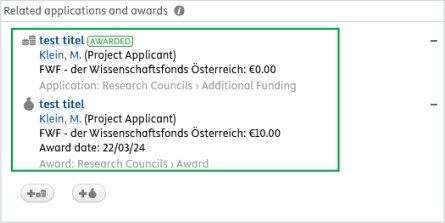
The budget information in the associated ‘Application/Award’ record must remain! (Those categories will not be displayed in the portal).
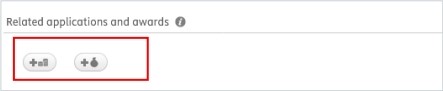
INCORRECT example 5:
! no associated application and/or award linked to the record:
In this case, you either removed the related application and/or award, or you did not relate the project to an application and/or an award. Both are incorrect, as each project must be linked to the appropriate budget-related categories. Non-competitive projects must be linked to an award, while competitive projects must be linked to both an application and an award. For more details, please refer to Chapter 3.1.1 Addition to Applications, Awards and Projects.
5. Habilitation-list (German Habilauszug) for researchers of your organisations unit
5.1. Habilitation-list for researchers
As a Pure-editor, you have the rigth to generate a habilitation-list for researchers of your organisational unit.
For the details, please refer FAQ 2.
If you don’t see your question answered here, or have suggestions for additional questions/answers, please contact pure support at pure@pmu.ac.at.