# 1. Check Your Content
# 1.1. Global Search
This searches through **metadata** of all records and content types available in PURE:
[](https://wiki.pmu.ac.at/uploads/images/gallery/2025-09/bild-8.jpeg)
# 1.2. Search Within a Content Type
Click on, for example, *Research outputs* on the left navigation to open the content list view with search functionality:
[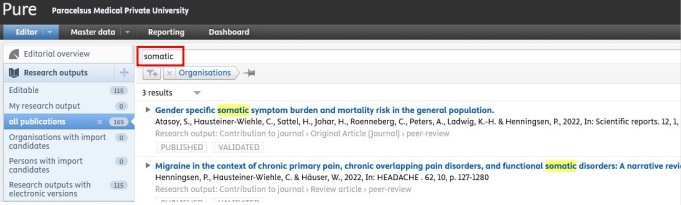](https://wiki.pmu.ac.at/uploads/images/gallery/2025-09/bild-10.jpeg)
# 1.3. Filter Within a Content Type
After choosing, for example, Research outputs*, navigate, for example to the category 'all publications ', click on the *Add filter* icon and select from the available **filter options** (e.g. 'Author collaborations'):
[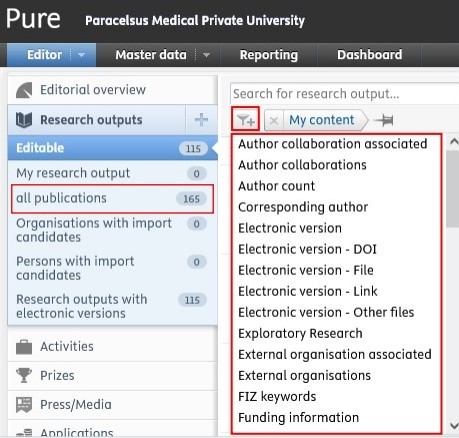](https://wiki.pmu.ac.at/uploads/images/gallery/2025-09/Zvobild-11.jpeg)
You can add multiple filters if you need to.
If you wish to use specific filters regularly, you can click on the **pin icon** ****
to save the filter. By doing so, you can save time and easily filter content you need:
[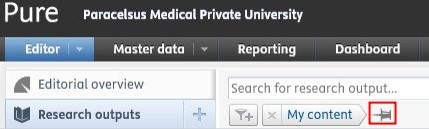](https://wiki.pmu.ac.at/uploads/images/gallery/2025-09/ZDCbild-13.jpeg)
# 1.4. Sort by Within a Content Type
After obtaining a list of records within, for example, *Research outputs*, there is the possibility to **sort the records** by several options (e.g. title, type, etc.):
[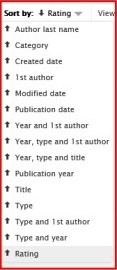](https://wiki.pmu.ac.at/uploads/images/gallery/2025-09/5fSbild-14.jpeg)
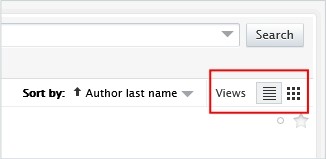
# 1.5. View Types Within a Content Type
For exampe, for *Research outputs*, you can choose from the list **view** or the matrix view to visualise your data:
[](https://wiki.pmu.ac.at/uploads/images/gallery/2025-09/teIbild-15.jpeg)
# 1.6. Export a List Within a Content Type
For example, for Research outputs, on the bottom of the page, you can select your preferred file type for export:
[](https://wiki.pmu.ac.at/uploads/images/gallery/2025-09/pmubild-16.jpeg)
If you need a habil list (in Geman: "Habilationsauszug") including impact factor and PMU score points, please refer to [FAQ 2](https://wiki.pmu.ac.at/books/pure-faqs-english/page/question-2-how-can-i-download-a-habilitation-list-in-german-habilauszug-with-pmu-score-points-and-impact-factor-from-pure).