3. Create Your Content - Applications, Awards, and Projects
- 3.1. Introduction
- 3.2. Competitive Projects, such as PMU-RIF, FWF or EU Projects (Awarded Applications)
- 3.3. Non-competitive Projects, Such as Clinical or Privately Funded Projects (Awards with Projects)
- 3.4. Applications - Details
- 3.5. Awards - Details
- 3.6. Projects - Details
- Changes from 1.1.2026 - No Shortcuts Anymore
3.1. Introduction
Award Management module utilizes the following content types:
- Applications
- Awards
- Projects
At PMU, we distinguish between two types of Projects:
- competitive Projects
- non-competitive Projects
For a competitive Project, such as FWF Project, you need to create three datatypes: an Application, an Award, and a Project. This is necessary so that you can register the start and end dates of the Project in the Project content type. To enter the applied and awarded amounts, you need to create an Application and an Award. For the exact steps in PURE, please refer to the section on Competitive Projects.
For a non-competitive Project, such as a clinical project, you need to create two datatypes: an Award, and a Project. This is necessary so that you can register the start and end dates of the Project in the Project content type. To enter the awarded amount, you need to create an Award. For the exact steps in PURE, please refer to the section on Non-competitive Projects.
3.2. Competitive Projects, such as PMU-RIF, FWF or EU Projects (Awarded Applications)
If your Application is awarded, you need to create both an Award and a Project as well. This method can be used for competitive Projects, such as PMU-RIF, FWF or EU Projects, etc.
To create a competitive Project:
1. Create an Application. For the details, please refer to the section Applications - Details.
2. Inform the Editor of your organisational unit or RM (pure@pmu.ac.at) about the date of submission and later the reply of the funder. They need to carry out certain work-flow steps in PURE.
3. Now you can create an award based on the awarded application by clicking on the button “Save and create award”:

4. The data of the Application is copied, click on Create:
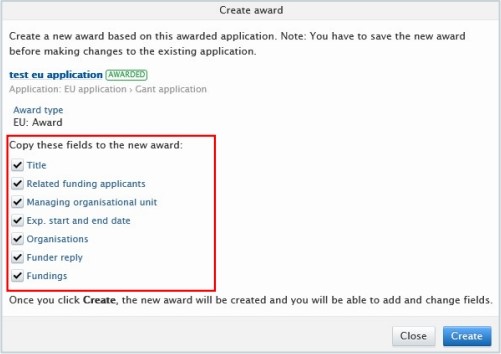
Popup blockers can block this new editor window; therefore, it is recommended to (temporarily) disable your pop-up blocker.
5. Modify the data, such as Award holders, etc., in the editor window if necessary.
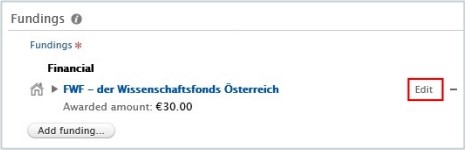
Fundings: Click on Edit next to the financial information if you need to update to awarded amount:
6. Click on Save.
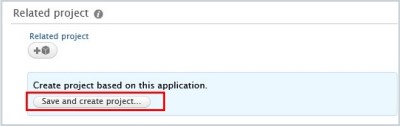
7. Create a Project based on the awarded application by opening the Application and clicking on the “Save and create project” button. For the details of Projects, refer to the section Projects - Details).
8. Click on Save.
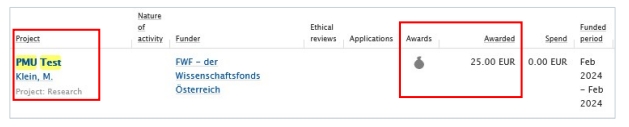
In summary, in case of a competitive project, you need to create three data types: an Application, an Award, and a Project. These data types need to be linked to each other:

In case of rejection from the funder, the process ends, and you don’t need to create either an Award or a Project.
3.3. Non-competitive Projects, Such as Clinical or Privately Funded Projects (Awards with Projects)
In case of a not competitive project, such as privately funded projects (corporate funding) etc., you don’t need to create an Application, but an Award and a Project.
To create a non-competitive project in Pure:
1. Create a Project. For the details of Projects, refer to the section Projects - Details.
2. Create an Award based on the Project by opening the Project and clicking on the “Save and create award” button. For the details of Award, refer to the section Awards - Details.
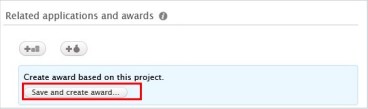
3. Click on “Save”.
In summary, in case of a non-competitive project, you need to create two data types: an Award, and a Project. These data types need to be linked to each other:
3.4. Applications - Details
An application in Pure is a record with information about a Researchers' Application for funding. The application process should be carried out according to the current rules and guidelines. Pure doesn’t replace any parts of the application process, including the approval of your superior. The entry should be in Pure before the planned submission.
To create a new Application:
1. Click on Add content button:
Or click on the triangle next to Personal in the header, select Applications, and click on the  button:

2. Scroll down until you locate the precise type of the item you want to add.
3. In the Application editor window, you need to enter all available information about the item. The required fields are marked with a red star, and filling them in is mandatory. To maintain data quality, we recommend providing information for some of the optional fields as well. The following steps include all the fields you suggested to fill in:
1. Application type:
The default type is Research Councils – Additional funding. Use the dropdown menu if you want to select another type.
2. Title:
Fill in the title of the application.
Pure automatically adds the content creator with the Project Applicant role, along with their organisational unit, to this field.
Click on Edit on the right side if you wish to change your role or your organisational unit. By clicking on the Add person button (left corner) or the add person icon  (right corner) you can add other persons who are related to this application. Click on Add organisational unit if you wish to register additional organisations.
4. Managing organisational unit:
Pure automatically adds the internal organisational unit of the content creator to this field. Change the organisational if you need to by clicking on the Change organisation button.
5. Collaborative application:
· Select No if the application is not a collaboration between partners (= only involves internal partners).
· Select Yes if the application involves internal and external partners. By clicking on Add collaborator you can add further collaborators. Choosing Yes allows you to register the split between collaborative partners, which can be done in the Fundings` field (see the next point).
6. Fundings:
Here you can provide your content with information about the funding organisation, financial summary (applied or estimated amount), etc:
· If you selected No in the Collaborative partners field (see point 5), you can manage the funding organisation, funding program, financial summary and add budgets as needed.
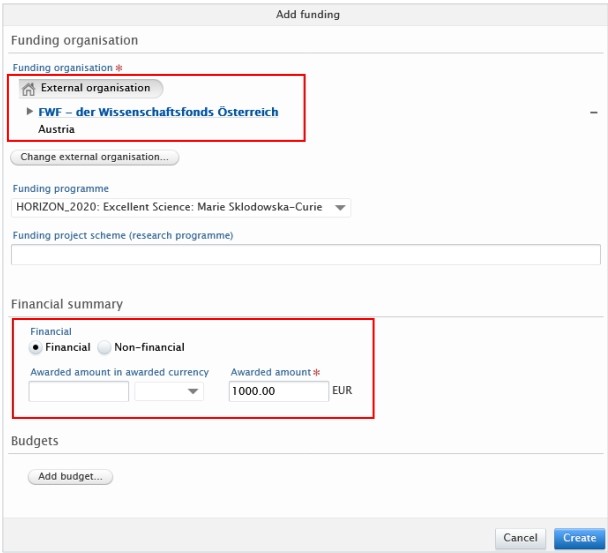
· If you selected Yes in the Collaborative partners field (see point 5), you can also manage split funding among project partners in addition to the fields mentioned above.
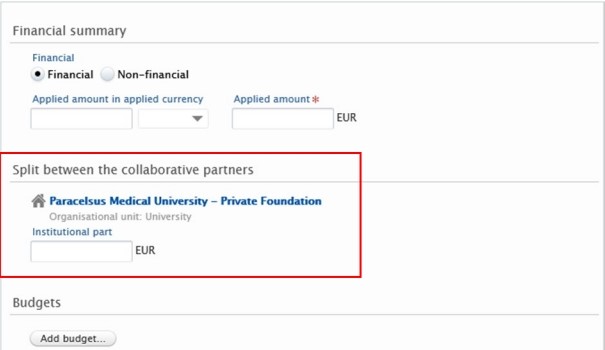
Optional: Click on “Add budget” in the dialog window if you need to register a split between internal organisational units:


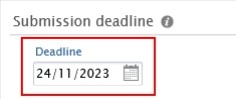
7. Submission deadline:
The entry should be in Pure before the planned submission.
8. Optional: Relations:
You can link your Applications with other Pure content, such as Projects.
4. Click on Send to internal approval.
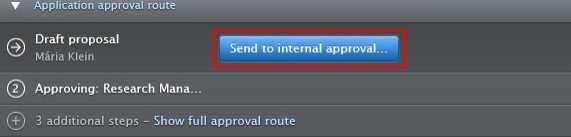
By default, the visibility type of applications is Confidential:

In the next step, the Application undergoes scrutiny by the RM. This involves a thorough review of the content to ensure accuracy and completeness. It's important to note that while the RM verifies the overall correctness and adequacy of the information, they don't delve into the specifics, such as scrutinizing funding details.
Please get in touch immediately with the Editor of your organisational unit or with RM at pure@pmu.ac.at once you have: 1. submitted the application to the funder, and 2. received a reply from the funder regarding the result of your Application. For the next step, please refer to the section Competitive Projects.
3.5. Awards - Details
An award in Pure is a record with information about research funding granted by a funder. If you would like the enter information about an Awarded application, please refer to the section Competitive Projects.
However, in certain cases, it may be necessary to create an Award without an Application.
To create a new Award:
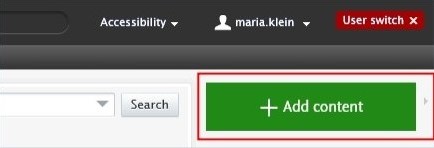
1. Click on Add content button:
Or click on the triangle next to Personal in the header, select Awards, and click on the button:

2. Scroll down until you locate the precise type of the item you want to add.
3. In the Application editor window, you need to enter all available information about the item. The required fields are marked with a red star and filling them in is mandatory. To maintain data quality, we recommend providing information for some of the optional fields as well. The following steps include all the fields you suggested filling in.
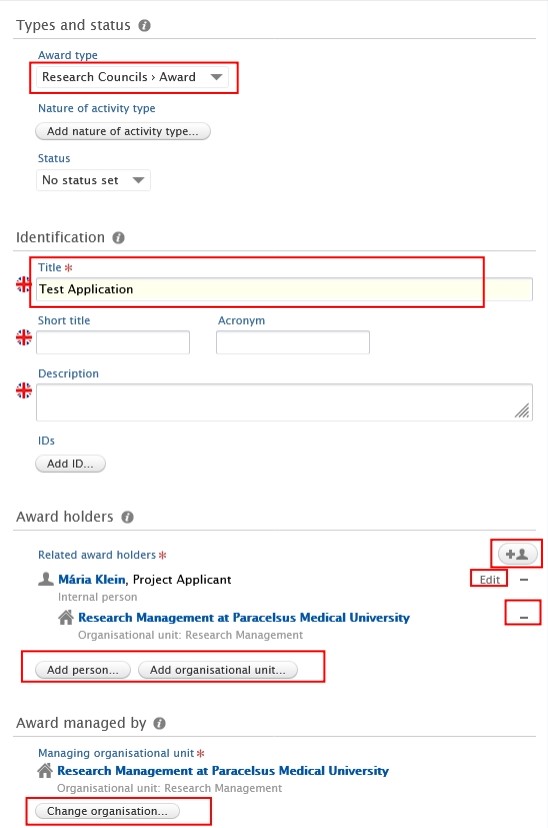
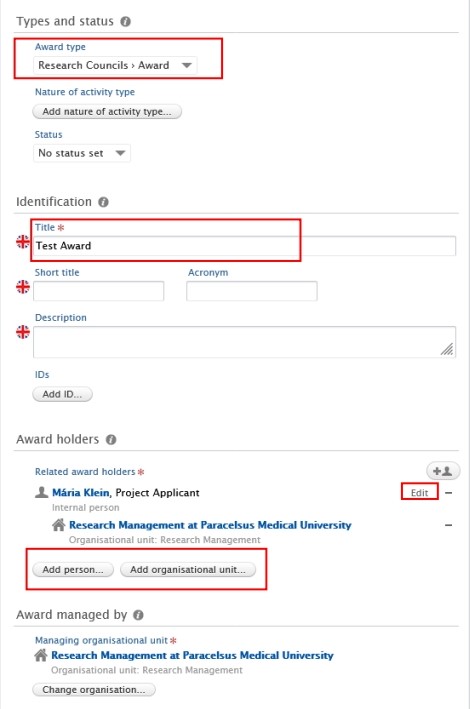
1. Award type:
The default type is Research Councils – Award. Use the dropdown menu if you want to select another type.
2. Title:
Fill in the title of the award.
Pure automatically adds the content creator with the PI role, along with their organisational unit, to this field. Click on Edit on the right side if you wish to change your role or your organisational unit. By clicking on the Add person button (left corner) or the add person icon  (right corner) you can add other persons who are related to this application. Click on Add organisational unit if you wish to register additional organisations.
4. Managing organisational unit:
Pure automatically adds the internal organisational unit of the content creator to this field. Change the organisational if you need to by clicking on the Change organisation button.
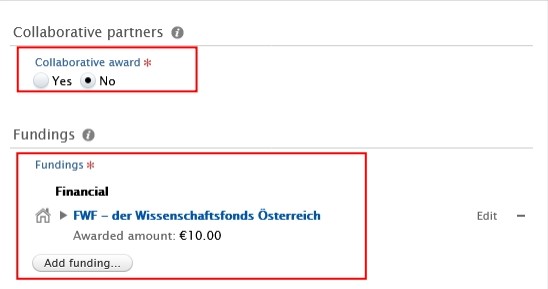
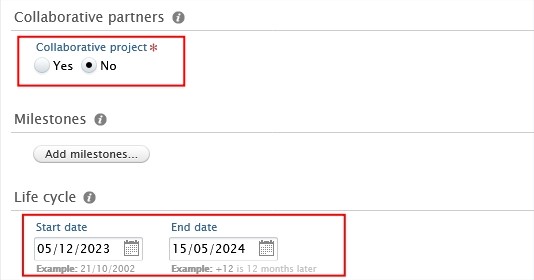
5. Collaborative award:
· Select No if the award is not a collaboration between partners.
· Select Yes if the application involves collaboration involving internal and external partners. By clicking on Add collaborator you can add further collaborators. Choosing Yes allows you to register the split between collaborative partners, which can be done in the Fundings field (see the next point).
6. Fundings:
Here you can provide your content with information about funding organisation, financial summary (applied or estimated amount), etc.
· If you selected No in the Collaborative partners field (see point 5), you can manage the funding organisation, funding program, financial summary and add budgets as needed:
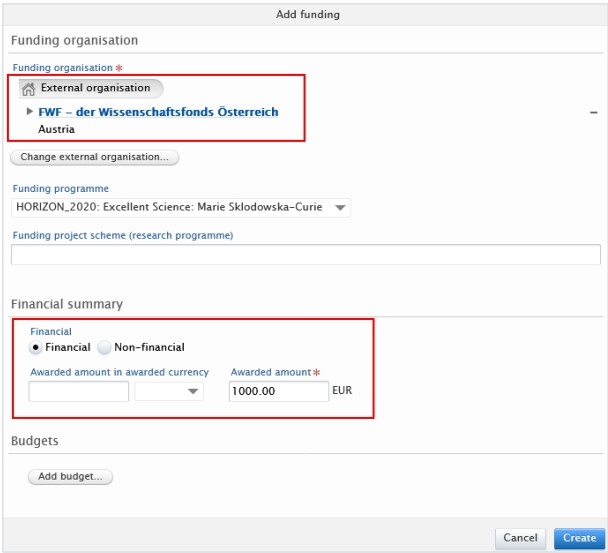
· If you selected Yes in the Collaborative partners field (see point 5), you can also manage split funding among project partners in addition to the fields mentioned above:
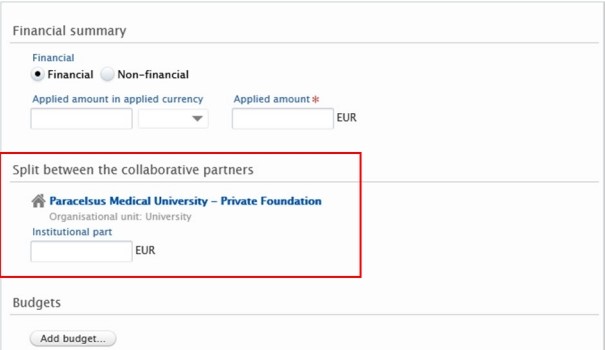
Optional: Click on “Add budget” in the dialog window if you need to register a split between internal organisational units:

7. Actual start and end date and Award date:
Fill in the information about dates:
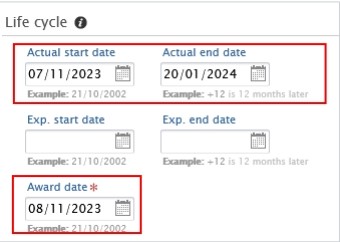
8. Optional: Relations:
You can link your applications with other Pure content, such as Projects.
4. Set the workflow status For Approval and click on Save:

In the next step, the application undergoes scrutiny by the RM. This involves a thorough review of the content to ensure accuracy and completeness. It's important to note that while we verify the overall correctness and adequacy of the information, we don't delve into the specifics, such as scrutinizing funding details.
3.6. Projects - Details
A project in Pure is a record of information about a research Project, such as the participants and collaborators.
If you would like the enter information about a competitive Project, such as a FFF, FWF, etc., Project, please refer to the section Awarded application (competitive Project)
If you would like the enter information about a non-competitive Project, as privately funded projects (corporate funding) etc., please refer to the section Awards with projects (non-competitive Projects
To create a new Project:
1. Click on Add content button:
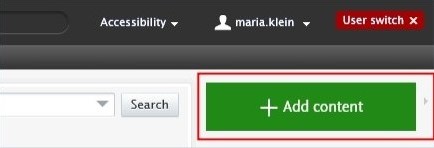
Or click on the triangle next to Personal in the header, select Projects, and click on the button:

2. Scroll down until you locate the precise type of the item you want to add.
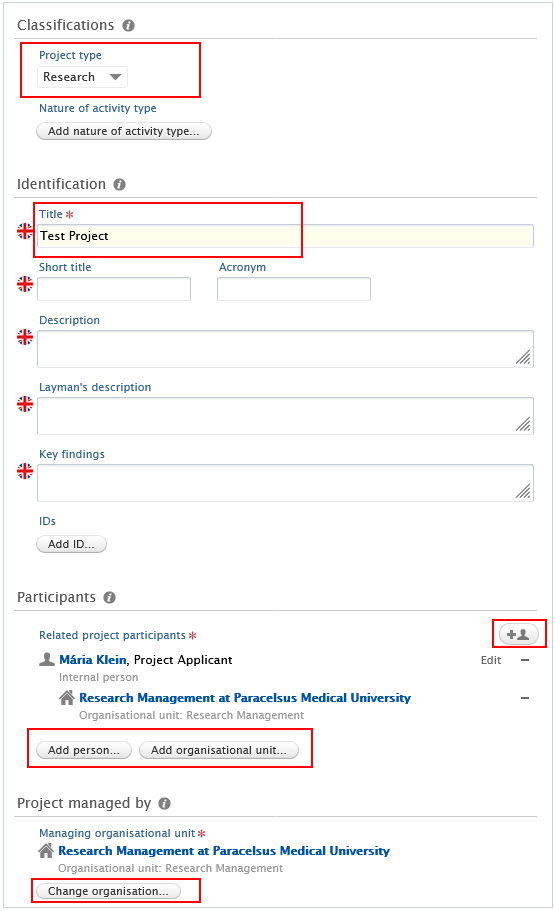
3. In the Project editor window, you need to enter all available information about the item. The required fields are marked with a red star, and filling them in is mandatory. To maintain data quality, we recommend providing information for some of the optional fields as well. The following steps include all the fields you suggested filling in:
1. Project type:
The default type is Research project. Use the dropdown menu if you want to select another type.
2. Identification:
Fill in the title of the project.
Pure automatically adds the content creator with the Project Applicant role, along with their organisational unit, to this field. Click on Edit on the right side if you wish to change your role or your organisational unit. By clicking on the Add person button (left corner) or the add person icon (right corner) you can add other persons who are related to this application. Click on Add organisational unit if you wish to register additional organisations.
The key participants of the project should be listed by role in the following order:
1. PI
2. Co-PI(s) (in alphabetical order)
3. Further contributor(s) (in alphabetical order)
4. Managing organisational unit:
Pure automatically adds the internal organisational unit of the content creator to this field. Change the organisational if you need to by clicking on the Change organisation button.
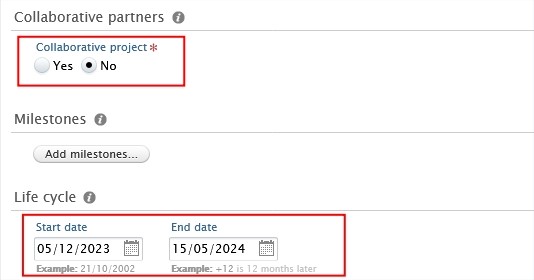
5. Collaborative project:
· Select No if the project is not a collaboration between partners.
· Select Yes if the project involves collaboration with two or more partners. By clicking on Add collaborator you can add add further collaborators. One collaborator must be marked as lead.
6. Start and End date:
Fill in the start and the end date of the project.
7. Optional: Relations:
You can link your project with other Pure content, such as research outputs.
8. Visibility:
If you wish to display the project on the PURE Portal, please set the visibility to public:

4. Set the workflow status For Approval and click on Save.
In the next step, the project will be validated by the responsible PURE-editor.
Only projects that are both publicly visible and validated appear on the PURE Portal. For the details, please refer to FAQ3.
Changes from 1.1.2026 - No Shortcuts Anymore
Due to technical changes, the recording of applications, awards, and projects in PURE will need to be carried out differently from 2026 onward.
The existing shortcuts (e.g., “Create an award based on this awarded application”) will no longer be available from 2026 onward.
This means, for example, that in the case of an approved funding application, the corresponding award and project must be entered entirely manually. All relevant fields have to be completed by hand, as no automatic transfer of data from the application will occur.
The exact steps, including screenshots, are displayed in the Chapter 3.1-3.6.
Do you still have questions? Don’t hesitate to contact us at pure@pmu.ac.at.