9. General Features of Content Types
- 9.1. Create a Copy
- 9.2. Delete an Item
- 9.3. Relations
- 9.4. Visibility
- 9.5. Comments and History
- 9.6. Information Icons
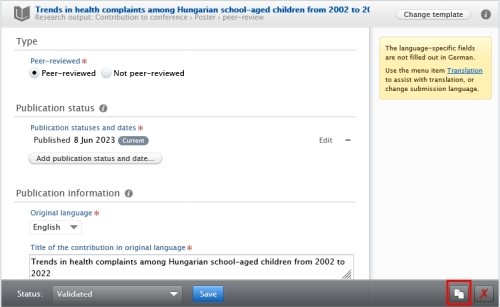
9.1. Create a Copy
This function is useful when you need to use the same or similar data multiple times. For example, if you want to enter multiple chapters of the same book:
9.2. Delete an Item
You can completely delete an item by clicking on the red 'x' icon. By doing so, you will receive an automated message from Pure, which you can either confirm or cancel, with the message: 'Are you sure you want to delete this content? The content will be deleted immediately, and this action cannot be undone´.
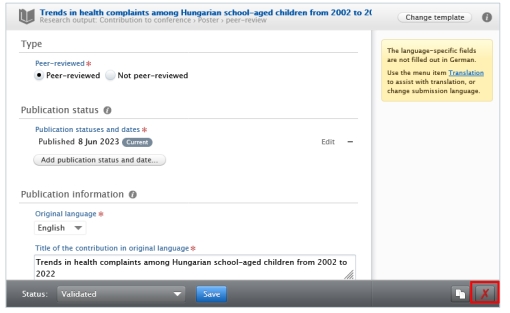
Be careful deleting a record in Pure. It is not possible to restore the deleted record.
9.3. Relations
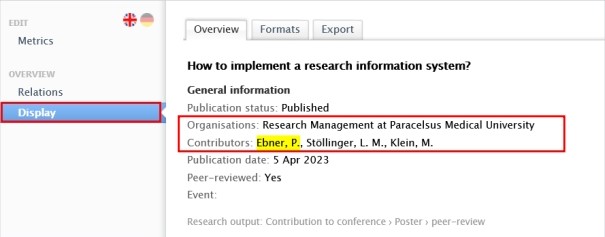
One of the most important advantages of Pure is, that it connects content types with each other. Using relations can help to improve our data quality. For example, a Research output is always related to a person and the person’s organisation. These connections are shown under Display tab.
To manually add relations to a record:
1. Search for the exact record, you want to link with another (in Pure already existing) record.
2. Go the Relations or Related …. section, and choose the type of the content. Begin to search for the record you want to add to this record.
3. Click on Save.
These relations are shown in the Relations tab of the record:
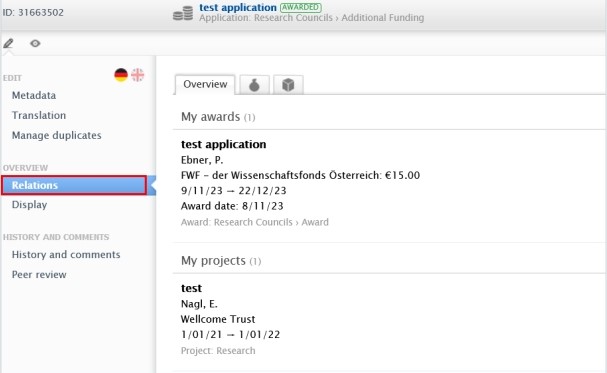
To manually add relations to a record depends on the workflow state. For example, if a Research output has gone through the validation process, adding a relation is no longer possible for Researchers.
9.4. Visibility
Visibility controls the internal and the external access of the records in Pure. You can control the visibility of your records by setting the visibility state from the dropdown list.
The following 4 visibility types are available in Pure:

|
Visibility state |
Description |
|
Public |
No restriction on visibility. All users of Pure can see this content and it is displayed on Pure Portal. |
|
Campus |
When viewed on the Pure Portal, visibility is restricted to viewers with a specific IP range set to reflect being on-campus at your institution. All users of Pure at your institution can see this content from within Pure. |
|
Backend |
Restricted to Pure users. This content is only visible within Pure. |
|
Confidential |
Highly-restricted visibility. Only visible from within Pure to general administrators and (those acting on behalf of) users that have been explicitly added to the record or have a role approving/validating the record. |
9.5. Comments and History
If you want to contact someone about a record in Pure, you can send them a message from that record. This method helps to avoid of the use of print screens, and long correspondence. Writing a comment on a record depends on the workflow state. For example, if a publication has gone through the validation process, writing a comment is no longer possible. In this case, please feel free to contact the RM at pure@pmu.ac.at.
To write a comment about a record:
1. Search for the record.
2. Go on Comments and History.
3. Click on Write a comment about the content:
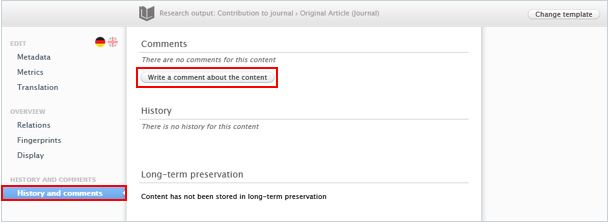
4. Write a comment in the text box and select the names/roles of the Pure users who you want to see the comment.
Make sure, that you select the checkboxes next to the names, otherwise no message is sent. If admins are also affected, please only select Mária Klein and Konstantin Thiel:

5. Click on Save.
In the next step, users are alerted, and they will see your comment alongside a link to the content.
9.6. Information Icons
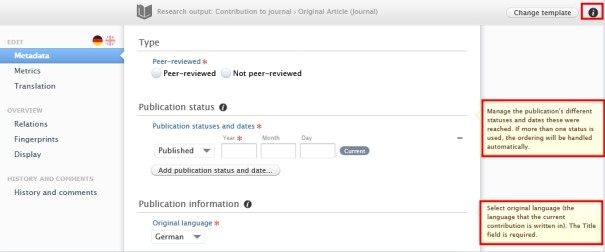
Information icons are valuable tools that assist in correctly filling out fields. We highly recommend using them, especially if you are new to Pure.
To check in one information icon:
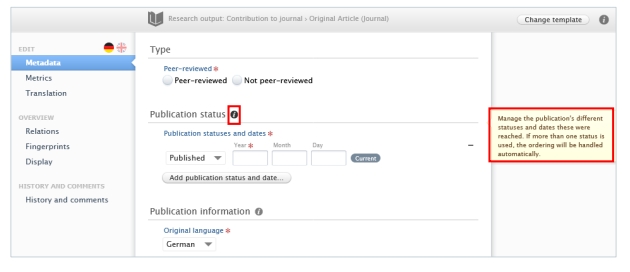
To check in all the information icons:
· Click on the information icon in the upper right corner. Now, you can see all the information boxes that belong to the content: