# 2.3. Import From Online Source

<p class="callout info"><span lang="EN-GB" style="mso-bidi-font-family: Arial; mso-ansi-language: EN-GB;">This option **is most preferable** because this method can save you time, minimize effort, and reduce data-entry errors. It can be used for any kind of research output that is **published in PubMed, Web of Science or ORCID.**</span></p>

<span lang="EN-GB" style="mso-bidi-font-family: Arial; color: #002060; mso-ansi-language: EN-GB;"> </span>

<u><span lang="EN-GB" style="mso-bidi-font-family: Arial; color: black; mso-themecolor: text1; mso-ansi-language: EN-GB;">To import a research output from online source:</span></u>

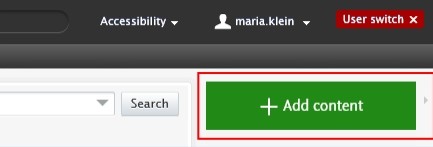
1. <span lang="EN-GB" style="mso-bidi-font-family: Arial; color: black; mso-themecolor: text1; mso-ansi-language: EN-GB;"> Click on the</span><span lang="EN-GB" style="mso-bidi-font-family: Arial; color: black; mso-themecolor: text1; mso-ansi-language: EN-GB;"> Add </span><span lang="EN-GB" style="mso-bidi-font-family: Arial; color: black; mso-themecolor: text1; mso-ansi-language: EN-GB;">content button:</span>[![Bild 20.jpeg](https://wiki.pmu.ac.at/uploads/images/gallery/2025-09/scaled-1680-/bild-20.jpeg)](https://wiki.pmu.ac.at/uploads/images/gallery/2025-09/bild-20.jpeg)

<span lang="EN-GB" style="mso-bidi-font-family: Arial; mso-ansi-language: EN-GB;">Or click on the triangle next to *Personal* in the header, select *Research outputs*, and then click on the </span><span style="mso-bidi-font-family: Arial; mso-fareast-language: DE-AT; mso-no-proof: yes;">![](https://wiki.pmu.ac.at/uploads/images/gallery/2025-09/embedded-image-jutgbecu.png)</span><span lang="EN-GB" style="mso-bidi-font-family: Arial; mso-ansi-language: EN-GB;">button:</span>

[![Bild 2.png](https://wiki.pmu.ac.at/uploads/images/gallery/2025-10/scaled-1680-/bild-2.png)](https://wiki.pmu.ac.at/uploads/images/gallery/2025-10/bild-2.png)

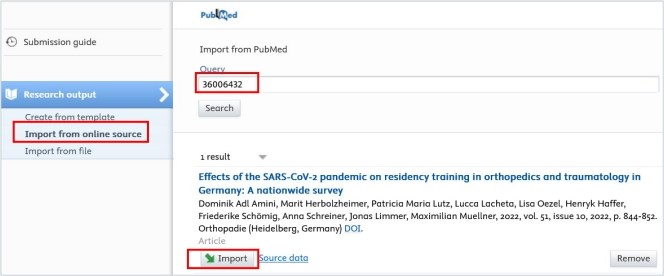
<span lang="EN-GB" style="mso-bidi-font-family: Arial; color: black; mso-themecolor: text1; mso-ansi-language: EN-GB;"> 2. Select *Import from online source*. At PMU you can import your data from PubMed, Web of Science and ORCID.</span>

<span lang="EN-GB" style="mso-bidi-font-family: Arial; color: black; mso-themecolor: text1; mso-ansi-language: EN-GB;"> 3. Select the online source you want to import from. In this example, we selected PubMed.</span>

<span lang="EN-GB" style="mso-bidi-font-family: Arial; color: black; mso-themecolor: text1; mso-ansi-language: EN-GB;"> 4. Enter the information you want to search for, such as PubMed ID or your name. Please ensure you always review the guidelines for the correct format of the information you intend to look for.</span>

<span lang="EN-GB" style="mso-bidi-font-family: Arial; color: black; mso-themecolor: text1; mso-ansi-language: EN-GB;"> 5. Click on the *Import* button located at the bottom of the article you wish to import into Pure.</span>

[![Bild 23.jpeg](https://wiki.pmu.ac.at/uploads/images/gallery/2025-09/scaled-1680-/bild-23.jpeg)](https://wiki.pmu.ac.at/uploads/images/gallery/2025-09/bild-23.jpeg)

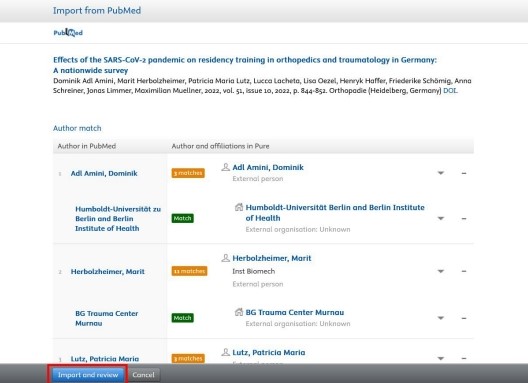
<span lang="EN-GB" style="mso-bidi-font-family: Arial; color: black; mso-themecolor: text1; mso-ansi-language: EN-GB;"> 6. Now, you can view the publication details. Do not modify the information displayed here; simply click on Import and review at the bottom of the window:</span>

[![Bild 24.jpeg](https://wiki.pmu.ac.at/uploads/images/gallery/2025-09/scaled-1680-/bild-24.jpeg)](https://wiki.pmu.ac.at/uploads/images/gallery/2025-09/bild-24.jpeg)

<span lang="EN-GB" style="mso-fareast-font-family: Arial; mso-bidi-font-family: Arial; mso-ansi-language: EN-GB;"><span style="mso-list: Ignore;">1 </span></span><span lang="EN-GB" style="mso-bidi-font-family: Arial; color: black; mso-themecolor: text1; mso-ansi-language: EN-GB;">7. In the Research output editor window, you need to manage these fields:</span>

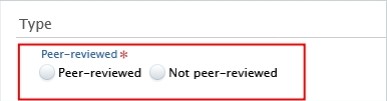
**<span lang="EN-GB" style="mso-fareast-font-family: Arial; mso-bidi-font-family: Arial; color: #232e64; mso-ansi-language: EN-GB;"><span style="mso-list: Ignore;">1.<span style="font: 7.0pt 'Times New Roman';"> </span></span></span><span lang="EN-GB" style="mso-bidi-font-family: Arial; color: #232e64; mso-ansi-language: EN-GB;">Peer-reviewed</span>**<span lang="EN-GB" style="mso-bidi-font-family: Arial; mso-ansi-language: EN-GB;">:</span>

<span lang="EN-GB" style="mso-bidi-font-family: Arial; color: black; mso-themecolor: text1; mso-ansi-language: EN-GB;">Whether the publication underwent a **peer-reviewed process** or not (peer-reviewed or not peer-reviewed):</span>

[![Bild 25.jpeg](https://wiki.pmu.ac.at/uploads/images/gallery/2025-09/scaled-1680-/bild-25.jpeg)](https://wiki.pmu.ac.at/uploads/images/gallery/2025-09/bild-25.jpeg)

<p class="callout info"><span lang="EN-GB" style="mso-bidi-font-family: Arial; color: black; mso-themecolor: text1; mso-style-textoutline-type: none; mso-style-textoutline-outlinestyle-dpiwidth: .75pt; mso-style-textoutline-outlinestyle-linecap: round; mso-style-textoutline-outlinestyle-join: bevel; mso-style-textoutline-outlinestyle-pctmiterlimit: 0%; mso-style-textoutline-outlinestyle-dash: solid; mso-style-textoutline-outlinestyle-align: center; mso-style-textoutline-outlinestyle-compound: simple; mso-ansi-language: EN-GB;">Click on *Change template* if you realise that the **subtype** of the Research output is **incorrect**. For example, if you have selected *Original article* but need to add a *Review article*, you can easily switch between template types without losing any of the data you have already filled in:</span></p>

[![Bild 26.jpeg](https://wiki.pmu.ac.at/uploads/images/gallery/2025-09/scaled-1680-/bild-26.jpeg)](https://wiki.pmu.ac.at/uploads/images/gallery/2025-09/bild-26.jpeg)

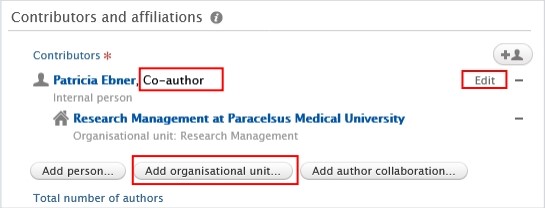
**<span lang="EN-GB" style="mso-fareast-font-family: Arial; mso-bidi-font-family: Arial; color: #232e64; mso-ansi-language: EN-GB;"><span style="mso-list: Ignore;">2.<span style="font: 7.0pt 'Times New Roman';"> </span></span></span><span lang="EN-GB" style="mso-bidi-font-family: Arial; color: #232e64; mso-ansi-language: EN-GB;">Contributors and affiliations</span>**<span lang="EN-GB" style="mso-bidi-font-family: Arial; color: black; mso-themecolor: text1; mso-ansi-language: EN-GB;">:</span>

<span lang="EN-GB" style="mso-bidi-font-family: Arial; color: black; mso-themecolor: text1; mso-ansi-language: EN-GB;">Pure automatically adds every contributor with their affiliations to these fields.  
Here, you only need to manage **your author role and affiliation(s)**.  
Click on *Edit* on the right side to select the role (type of authorship) you contributed to the publication. In the affiliations field, include only those affiliations associated with the publication. You can delete them by clicking on the minus button, and you can add internal and external organizations by clicking on the *Add organizational unit* button:</span>

[![Bild 9.jpeg](https://wiki.pmu.ac.at/uploads/images/gallery/2025-10/scaled-1680-/bild-9.jpeg)](https://wiki.pmu.ac.at/uploads/images/gallery/2025-10/bild-9.jpeg)

**<span lang="EN-GB" style="mso-fareast-font-family: Arial; mso-bidi-font-family: Arial; color: #232e64; mso-ansi-language: EN-GB;"><span style="mso-list: Ignore;">3.<span style="font: 7.0pt 'Times New Roman';"> </span></span></span><span lang="EN-GB" style="mso-bidi-font-family: Arial; color: #232e64; mso-ansi-language: EN-GB;">Managing organisational unit</span>**<span lang="EN-GB" style="mso-bidi-font-family: Arial; mso-ansi-language: EN-GB;">: </span>

<span lang="EN-GB" style="mso-bidi-font-family: Arial; color: black; mso-themecolor: text1; mso-ansi-language: EN-GB;">Select *your internal organisational unit* to this field by clicking on the "house with a plus" b</span><span lang="EN-GB" style="mso-bidi-font-family: Arial; color: black; mso-themecolor: text1; mso-ansi-language: EN-GB;">utton. External organisations cannot be added in this field. (In some cases, RM may assign a different internal organisation during the  
validation process).</span>

[![Bild 27.jpeg](https://wiki.pmu.ac.at/uploads/images/gallery/2025-09/scaled-1680-/bild-27.jpeg)](https://wiki.pmu.ac.at/uploads/images/gallery/2025-09/bild-27.jpeg)

**<span lang="EN-GB" style="mso-fareast-font-family: Arial; mso-bidi-font-family: Arial; color: #232e64; mso-ansi-language: EN-GB;"><span style="mso-list: Ignore;">4.<span style="font: 7.0pt 'Times New Roman';"> </span></span></span><span lang="EN-GB" style="mso-bidi-font-family: Arial; color: #232e64; mso-ansi-language: EN-GB;">Research topic:</span>**

Assign on or more research topics for the following publication from publication year **2025 onwards: Original article, review article, case report, letter to the editor, editorial, short comment/notes, book, book chapter**. For **other categories**, such as abstracts, corrections or publications in which **only PMU teaching hospitals** are involved as internal organizations, **no** topic **assignment** is required.

<span lang="EN-GB" style="mso-bidi-font-family: Arial; color: black; mso-themecolor: text1; mso-ansi-language: EN-GB;"> 8. Set the workflow status *For validation* and then click on *Save*. </span>

[![Bild 29.jpeg](https://wiki.pmu.ac.at/uploads/images/gallery/2025-09/scaled-1680-/bild-29.jpeg)](https://wiki.pmu.ac.at/uploads/images/gallery/2025-09/bild-29.jpeg)

<span lang="EN-GB" style="mso-bidi-font-family: Arial; mso-ansi-language: EN-GB;">In the next step, the imported research output undergoes **validation** by the RM.</span>

<p class="callout info"><span lang="EN-GB" style="mso-bidi-font-family: Arial; mso-ansi-language: EN-GB;">Are you interested in an automated publication search from online sources? See section Automated search (without immediate effect).</span></p>