# How do I log in into my PMU account for the first time?
Logon using a computer or tablet to avoid technical issues.
Open the following website and log in using the credentials you received via E-Mail from : [https://aka.ms/mfasetup](https://aka.ms/mfasetup)
[](https://wiki.pmu.ac.at/uploads/images/gallery/2025-11/uq7grafik.png)
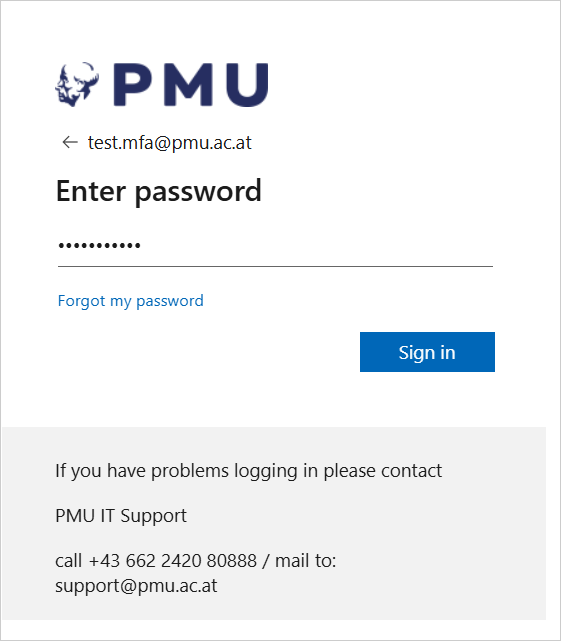
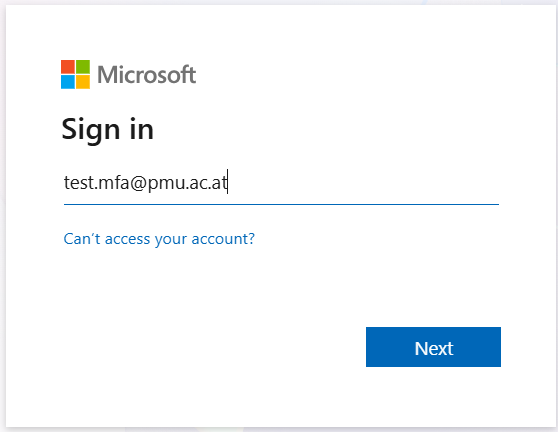
Enter your complete PMU E-Mail-address. After that enter the temporary password from the E-Mail:
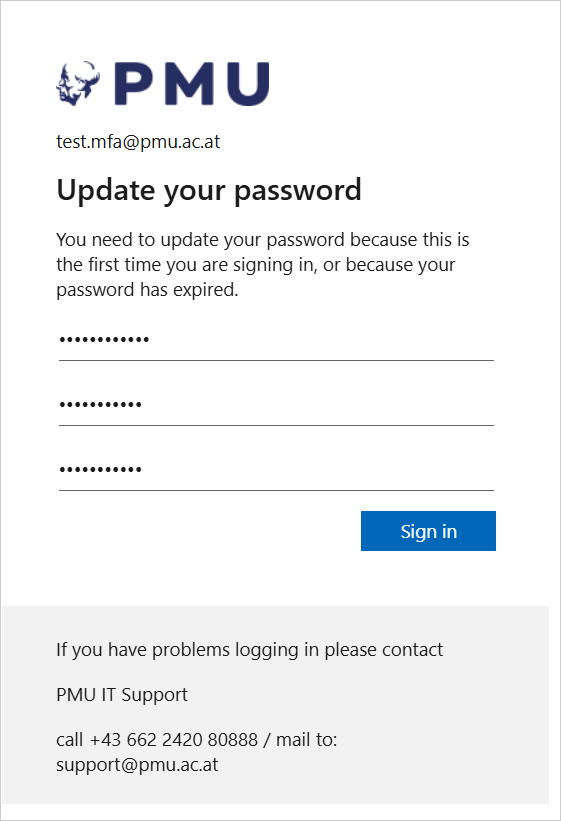
A new window will open. You have to change your password immediately:
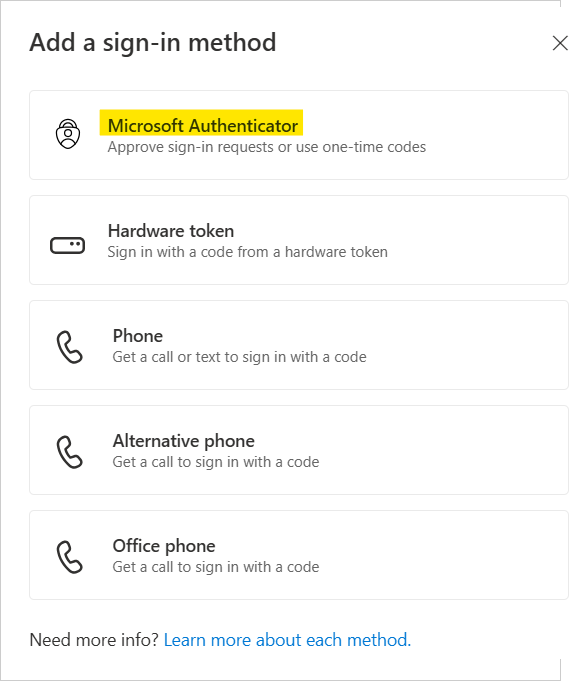
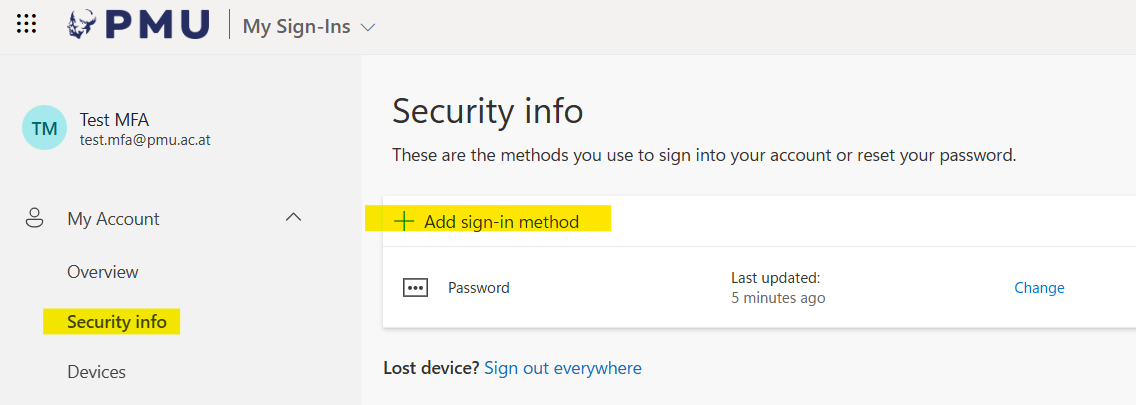
After that you will find yourself in your Microsoft Security Info. Now click "+ Add sign-in method":
[](https://wiki.pmu.ac.at/uploads/images/gallery/2025-11/wGegrafik.png)
Next, choose the "Microsoft Authenticator":
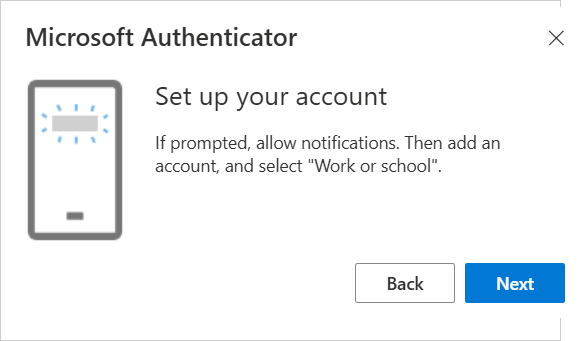
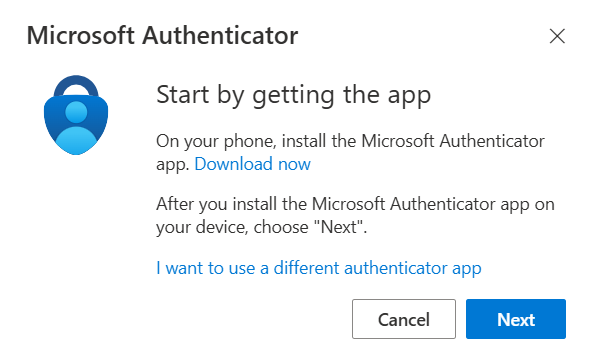
Now a new window is popping up. It'll ask you to open or install the Microsoft Authenticator app on your smartphone. If you don't have this app yet, you need to install it first. You can download it for free from the App-Store (for Iphone) or from the Play-Store (for Android devices):
[](https://wiki.pmu.ac.at/uploads/images/gallery/2025-11/7PZgrafik.png)
After installing and opening the app, follow the instructions shown on the screen and click "Next":
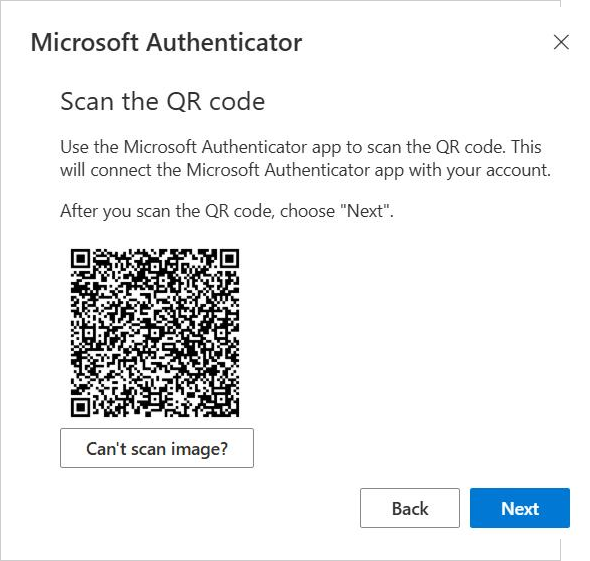
Scan the QR code with your smartphone which is shown on your computer screen:
To scan the QR code you have to click on "Add account" (or click on the + symbol on the top right corner) in the Authenticator App.
[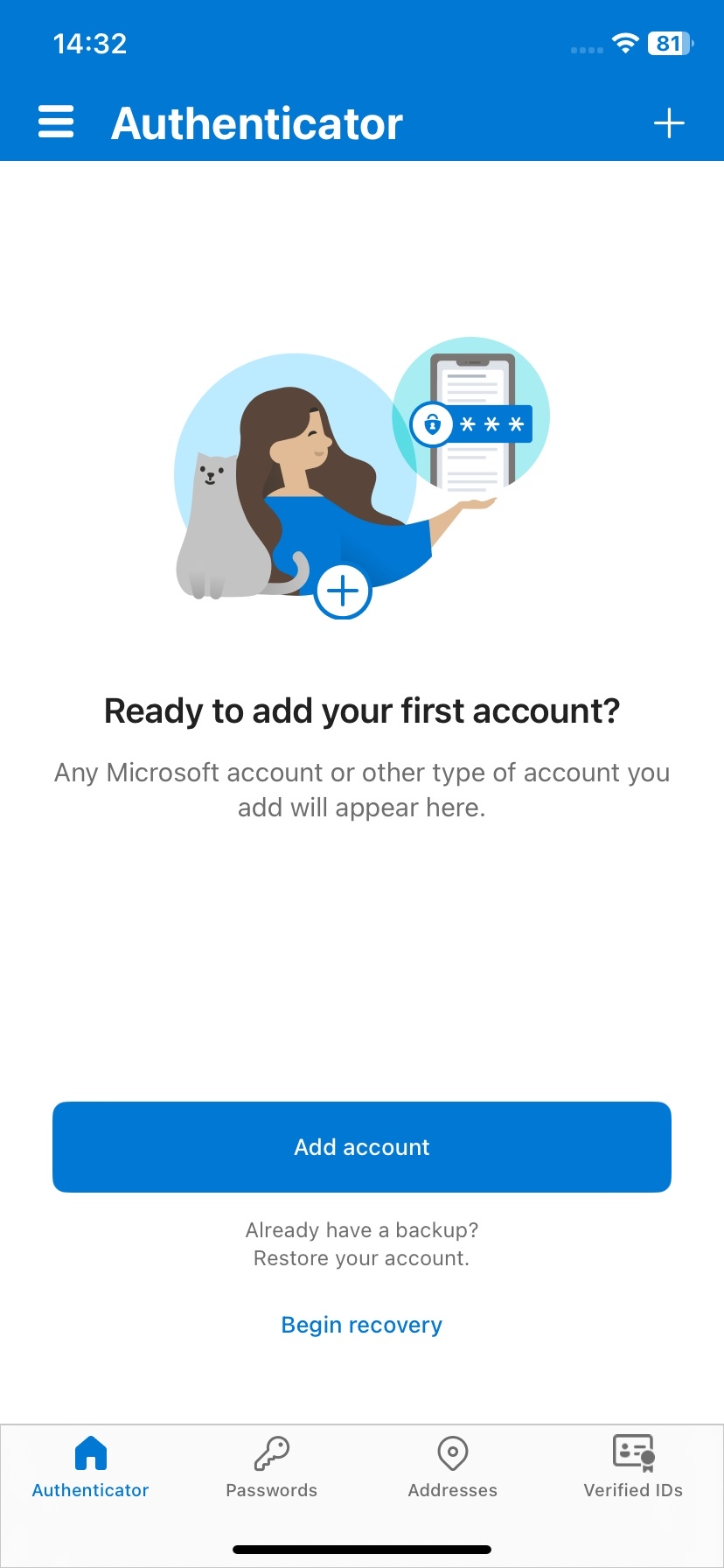](https://wiki.pmu.ac.at/uploads/images/gallery/2025-11/VORgrafik.png)
After that, choose "Work or school" account.
[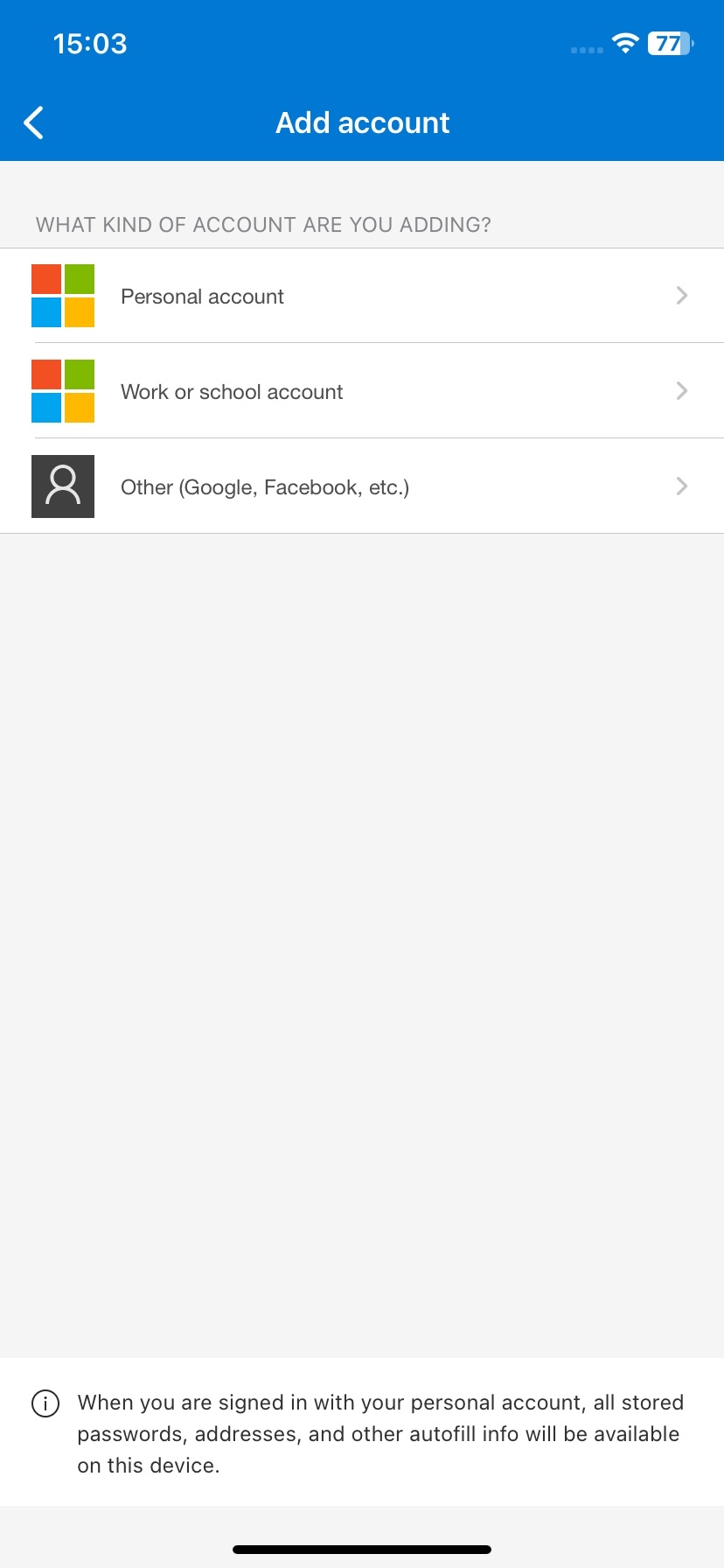](https://wiki.pmu.ac.at/uploads/images/gallery/2025-11/UI0grafik.png)
You may now choose "Scan QR code" to register.
[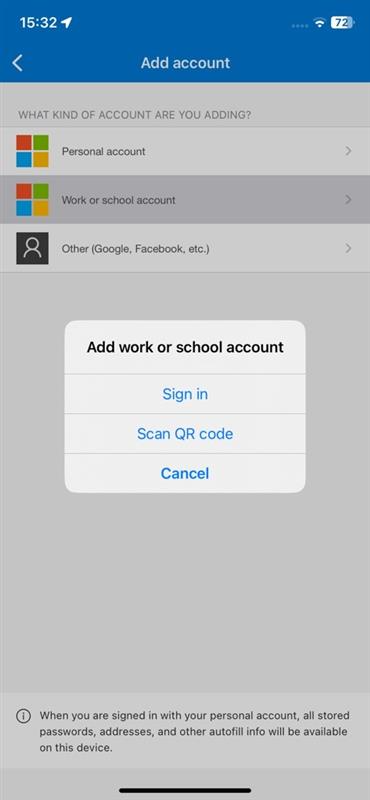](https://wiki.pmu.ac.at/uploads/images/gallery/2025-11/ovkgrafik.png)
The camera will open autmomatically to scan the code on the computer screen.
[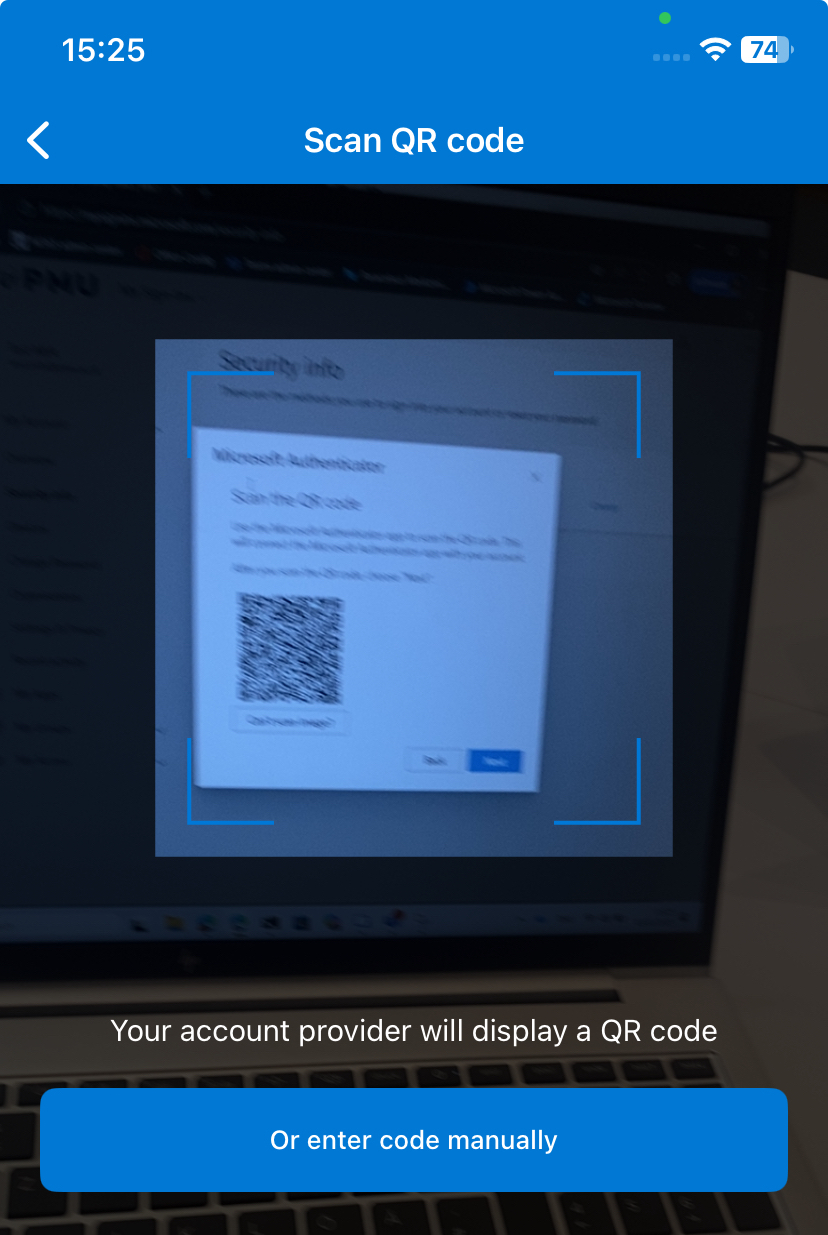](https://wiki.pmu.ac.at/uploads/images/gallery/2025-11/D2agrafik.png)
After the scan a "test run" of the authentication will start. For this you have to enter the number (which is shown on your computer) in the Authenticator app (the number changes with every authentication).
Computer:
[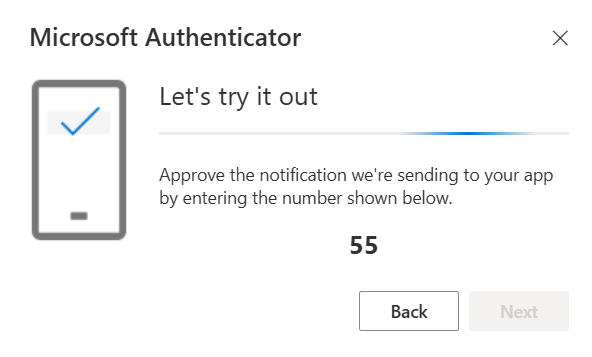](https://wiki.pmu.ac.at/uploads/images/gallery/2025-11/VbVgrafik.png)
Smartphone:
[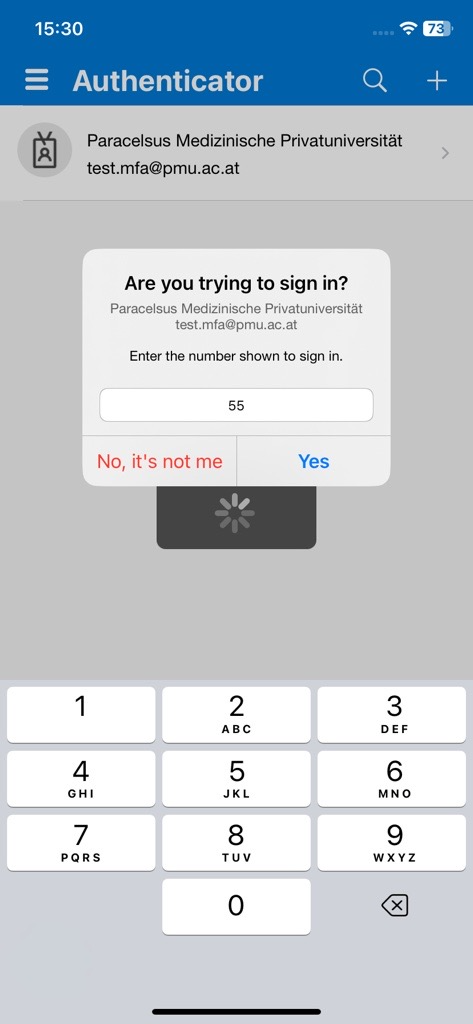](https://wiki.pmu.ac.at/uploads/images/gallery/2025-11/KqBgrafik.png)
You'll receive a notification after everything worked correctly.
[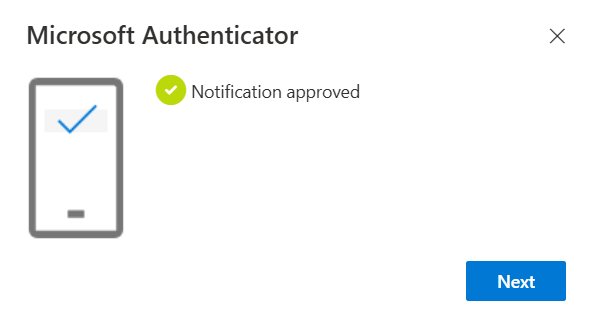](https://wiki.pmu.ac.at/uploads/images/gallery/2025-11/lcmgrafik.png)
Now the registration is done, your Microsoft account will show your Smartphone as second sign-in method.
[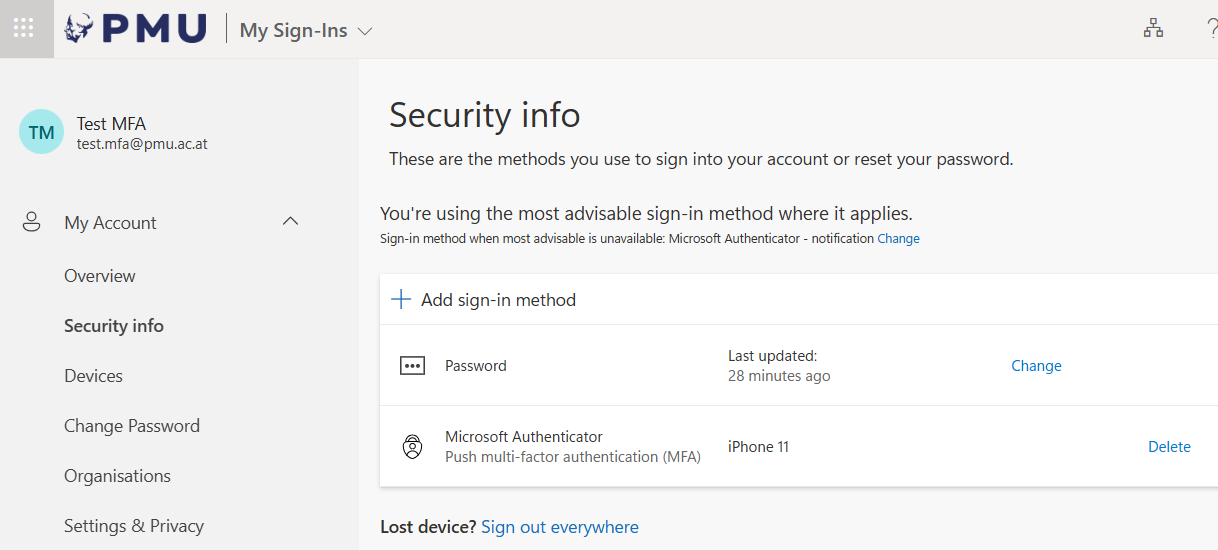](https://wiki.pmu.ac.at/uploads/images/gallery/2025-11/D8ggrafik.png)
The password change and the registration is now completed and you can close the tab (or log out).
The Authenticator registration is bound to your hardware. It cannot be moved to another device. This means, if you get a new smartphone you have to register it for your PMU Microsoft account before changing to it. The link to your personal Microsoft Security info is [https://aka.ms/mfasetup](https://aka.ms/mfasetup) or [https://mysignins.microsoft.com/security-info](https://mysignins.microsoft.com/security-info)
Please note: You always need MFA (multi-factor-authentication) outside the PMU campus to access your account.